> ## Documentation Index
> Fetch the complete documentation index at: https://jam.dev/docs/llms.txt
> Use this file to discover all available pages before exploring further.
# Access Controls
> Set default access for every Jam in your workspace, and adjust visibility on any single Jam when one needs tighter control.
Available to workspaces on our [Team](https://jam.dev/pricing) or [Enterprise](https://jam.dev/pricing) plans.
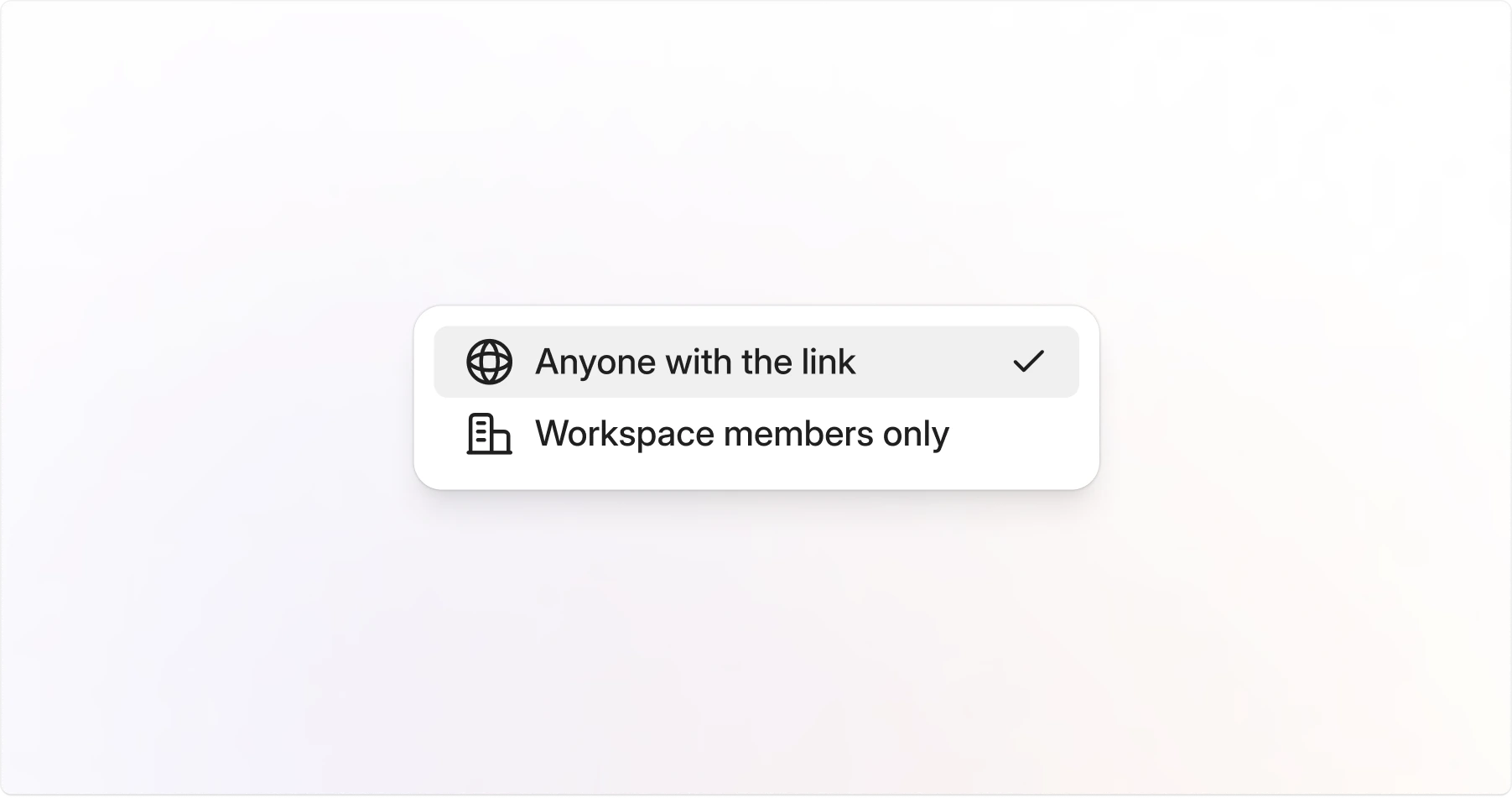 Set a default access policy for every Jam in your workspace, and override it on individual Jams when needed.
## Default link access
Control default access for every Jam in your workspace:
1. **Anyone with the link**: Anyone with the link can view
2. **Workspace members only**: Only members of your workspace can view
Modify the default access controls in [**Settings**](https://jam.dev/s/settings). Override defaults for individual Jams:
Set a default access policy for every Jam in your workspace, and override it on individual Jams when needed.
## Default link access
Control default access for every Jam in your workspace:
1. **Anyone with the link**: Anyone with the link can view
2. **Workspace members only**: Only members of your workspace can view
Modify the default access controls in [**Settings**](https://jam.dev/s/settings). Override defaults for individual Jams:
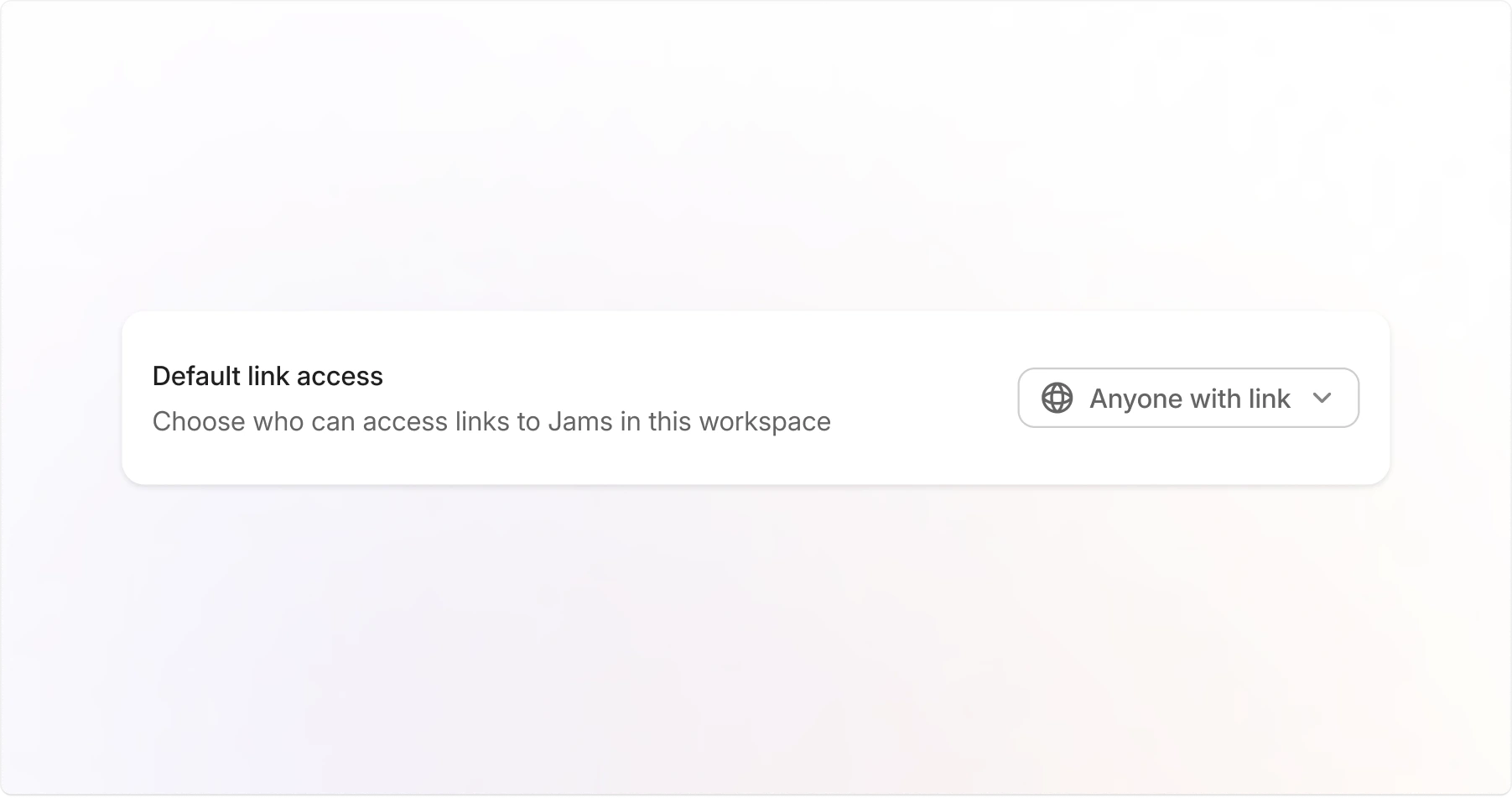 Set a default that applies to all existing and new Jams in your workspace. Only workspace Admins can change this setting.
Go to [**Settings**](https://jam.dev/s/settings).
* **Anyone with the link**: Anyone with the link can view
* **Workspace members only**: Only members of your workspace can view
Override defaults for individual Jams:
Open any Jam you want to adjust.
Click **chevron** next to the copy link button
Select **Anyone with the link** or **Workspace members only**.
## FAQ
`Anyone with the link` lets anyone with the link view the Jam (no login required). `Workspace members only` requires users to log in and be part of your workspace.
Set a default that applies to all existing and new Jams in your workspace. Only workspace Admins can change this setting.
Go to [**Settings**](https://jam.dev/s/settings).
* **Anyone with the link**: Anyone with the link can view
* **Workspace members only**: Only members of your workspace can view
Override defaults for individual Jams:
Open any Jam you want to adjust.
Click **chevron** next to the copy link button
Select **Anyone with the link** or **Workspace members only**.
## FAQ
`Anyone with the link` lets anyone with the link view the Jam (no login required). `Workspace members only` requires users to log in and be part of your workspace.