> ## Documentation Index
> Fetch the complete documentation index at: https://jam.dev/docs/llms.txt
> Use this file to discover all available pages before exploring further.
# Creating a Jam
> Install the Chrome extension or iOS app and share your first bug report in seconds. Every report includes console logs, network requests, and device info.
Jam captures bugs with full technical context (console logs, network requests, user events, and device metadata) automatically attached to every capture. You can create Jams on desktop using the Chrome extension or on mobile using the iOS app.
## Creating a Jam on Desktop
Visit the [Chrome Web Store](https://chromewebstore.google.com/detail/jam/iohjgamcilhbgmhbnllfolmkmmekfmci) and add the Jam extension to your browser.
Pin Jam to your browser toolbar so it's always one click away during testing and debugging.
Click the Jam icon, enter your email, and set up your account.
Click the Jam icon in your toolbar and select how you want to capture:
Captures the current page state with full technical context: console logs, network requests, user events, and device metadata.
Records your screen while you reproduce the issue step-by-step. Includes the same full technical context as a screenshot.
Automatically captures up to the last 2 minutes of activity. No need to reproduce the bug. Hit the Jam button after it happens.
Add a description, then click **Create**. Your Jam opens in a new tab with all technical details included, and the link is automatically copied to your clipboard.
Paste the Jam link into Slack, a Jira ticket, a GitHub issue, or wherever your team tracks bugs. You can also send it directly to an integration from the Jam share page.
Use keyboard shortcuts to capture even faster. Open the extension popup or trigger Instant Replay without leaving the page you're debugging. See [keyboard shortcuts](/keyboard-shortcuts) for the full list.
## Creating a Jam on Mobile
Jam is currently available for iOS only.
[Download](https://apps.apple.com/de/app/jam-fix-bugs-faster/id6469037234?l=en-GB) Jam from the App Store.
Tap the Jam button and begin a screen broadcast to start capturing.
Navigate to your app or website and demonstrate the bug.
Stop the broadcast, trim your video, add a description, and send to your issue tracker
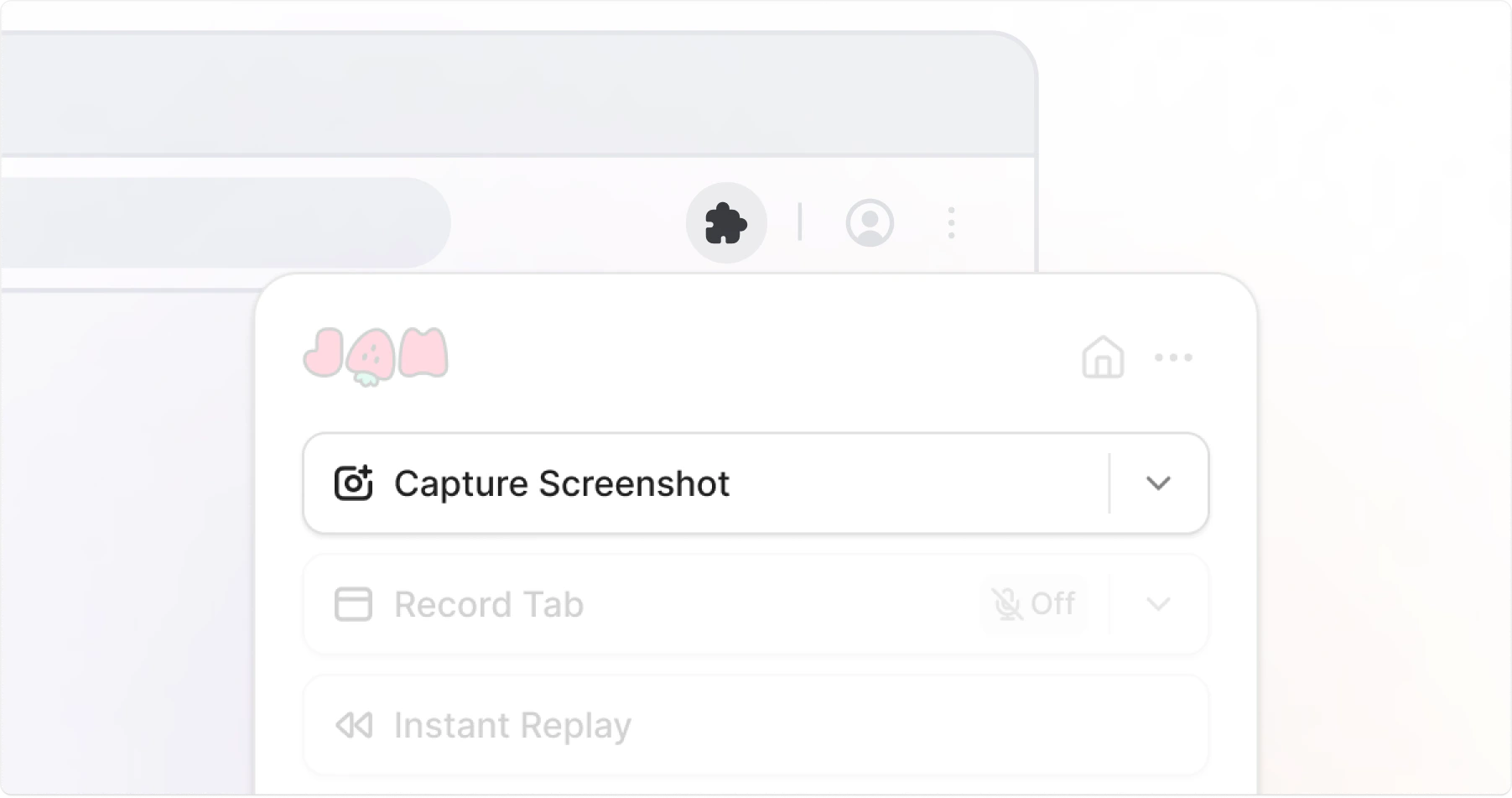 Captures the current page state with full technical context: console logs, network requests, user events, and device metadata.
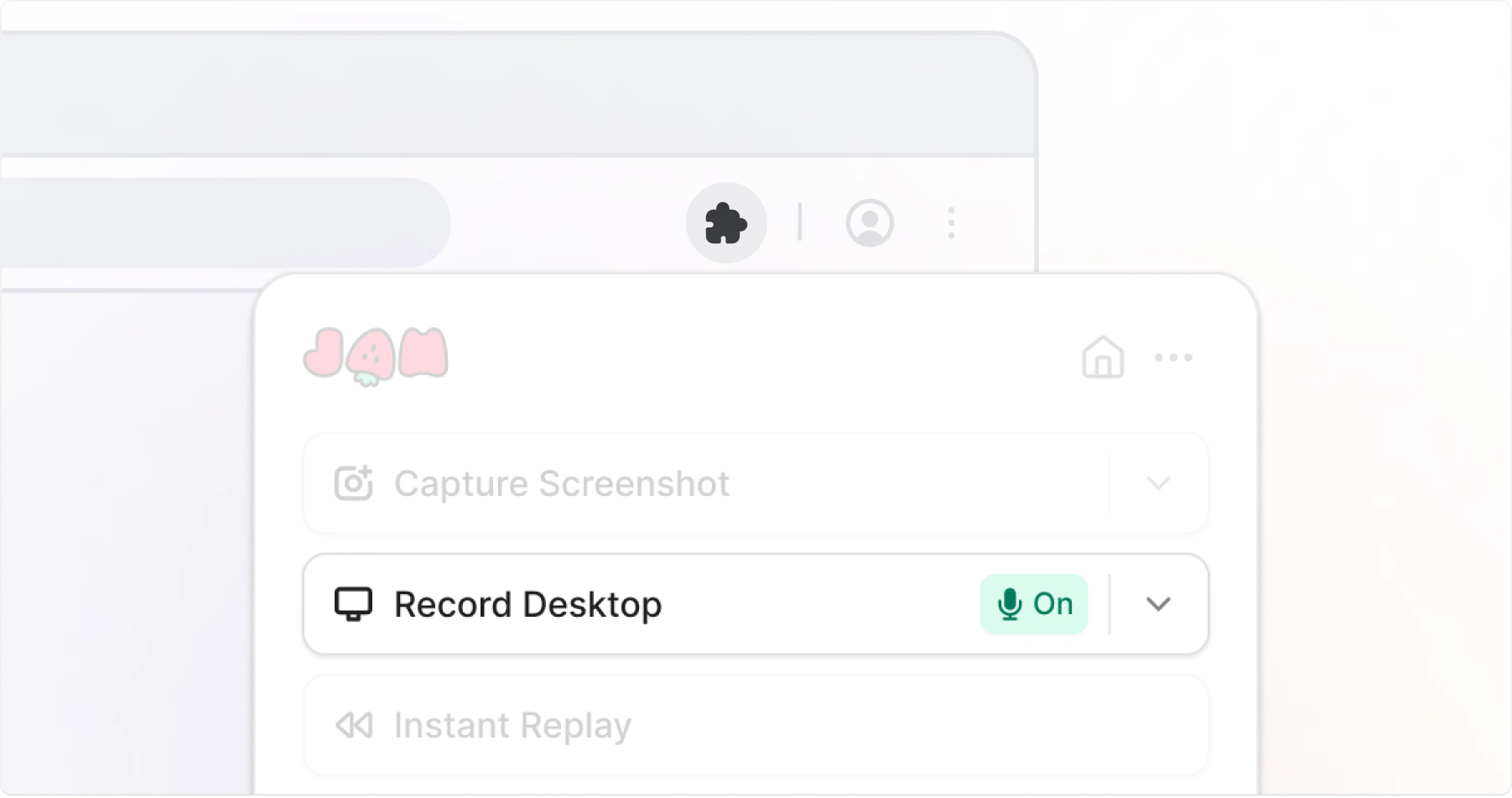 Records your screen while you reproduce the issue step-by-step. Includes the same full technical context as a screenshot.
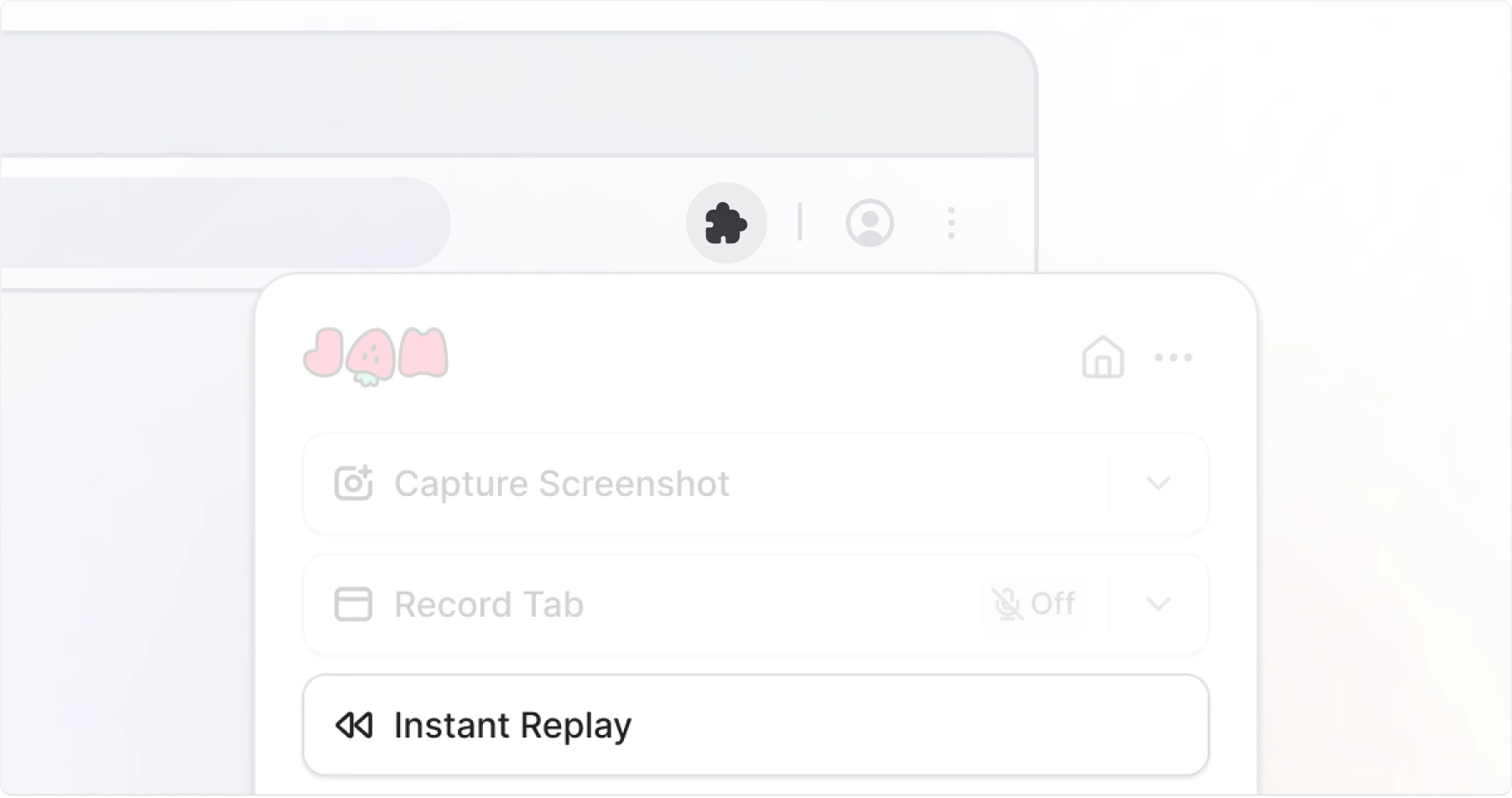 Automatically captures up to the last 2 minutes of activity. No need to reproduce the bug. Hit the Jam button after it happens.