> ## Documentation Index
> Fetch the complete documentation index at: https://jam.dev/docs/llms.txt
> Use this file to discover all available pages before exploring further.
# Jam for Mac
> Record your screen, a window, or an area and share a Jam in seconds. Add your camera and voice, and capture browser logs with the extension.
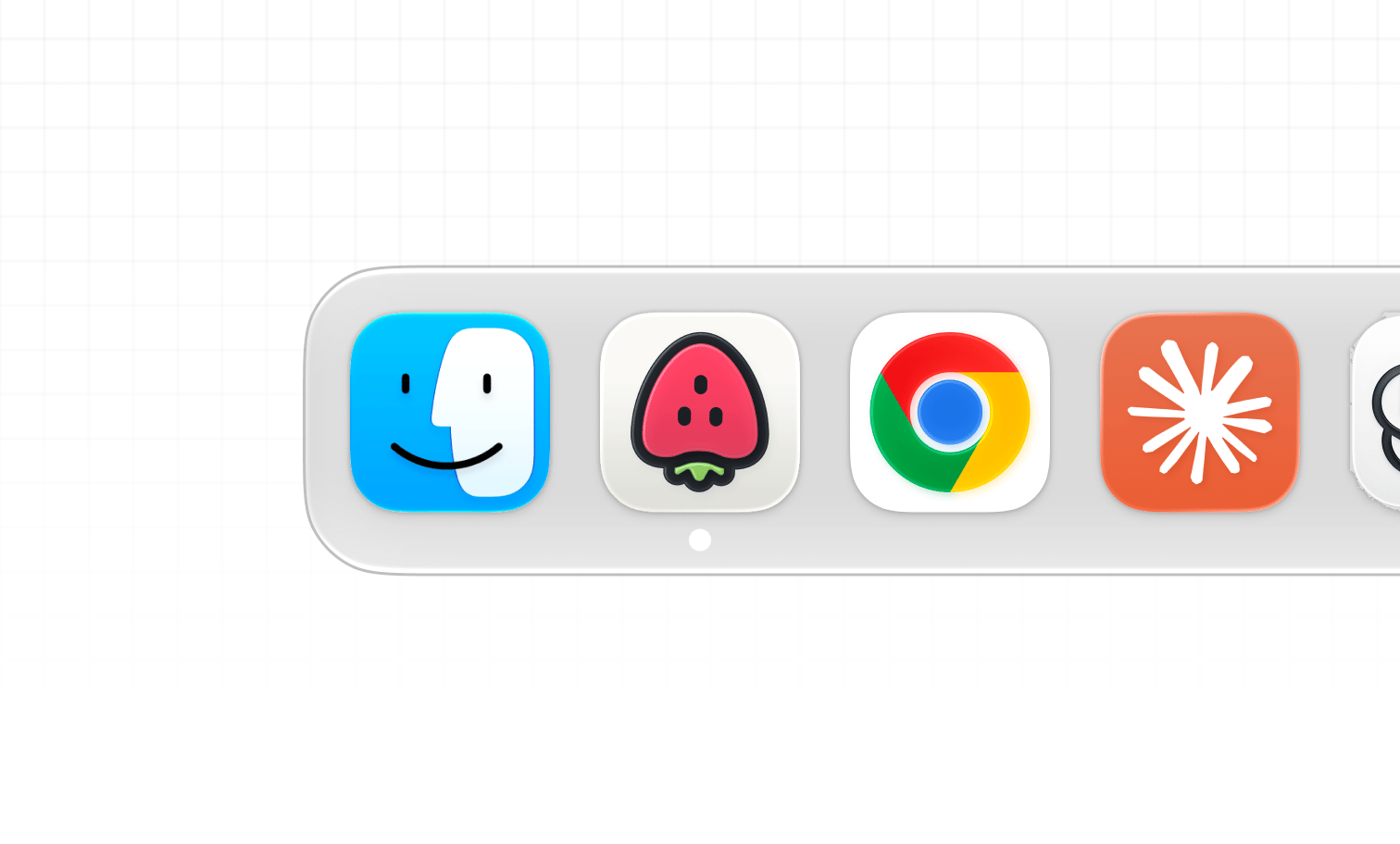 Jam for Mac is a screen recorder that lives in your menu bar. Press a shortcut, record your screen, a window, or an area, and get a shareable Jam link. It works on its own, and with the browser extension installed, your Mac recordings also carry console logs and network requests from the browser.
Jam for Mac is included on every plan, and Mac Jams count toward the same monthly quota as your browser Jams.
## Install Jam for Mac
Go to [jam.dev/download](https://jam.dev/download). The download starts automatically.
Open `Jam.dmg` and drag it into the **Applications** folder.
Jam for Mac is a screen recorder that lives in your menu bar. Press a shortcut, record your screen, a window, or an area, and get a shareable Jam link. It works on its own, and with the browser extension installed, your Mac recordings also carry console logs and network requests from the browser.
Jam for Mac is included on every plan, and Mac Jams count toward the same monthly quota as your browser Jams.
## Install Jam for Mac
Go to [jam.dev/download](https://jam.dev/download). The download starts automatically.
Open `Jam.dmg` and drag it into the **Applications** folder.
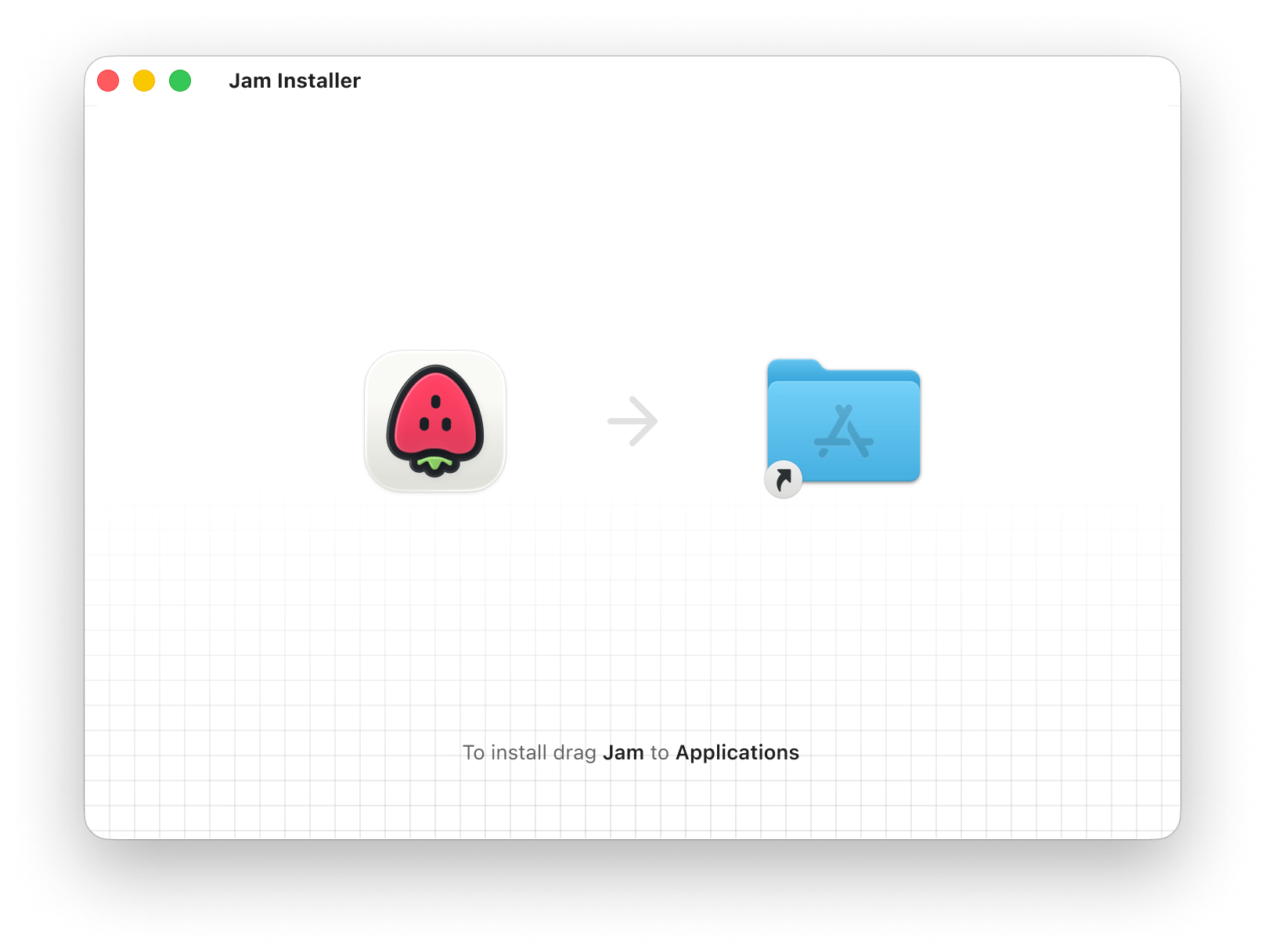 Open **Jam** from Applications. Jam opens your browser to sign in or create an account, then returns you to the app.
## Grant permissions
On first run, Jam asks for the macOS permissions it needs:
* Screen Recording
* Microphone
* Camera
macOS applies a new Screen Recording permission only after the app restarts. If Jam still cannot record after you turn the permission on, quit Jam with **Cmd + Q** and open it again.
If a permission goes missing later, the permission screen appears again the next time you open Jam. You can also check it under **System Settings → Privacy & Security → Screen & System Audio Recording**.
## Find Jam in the menu bar
Open **Jam** from Applications. Jam opens your browser to sign in or create an account, then returns you to the app.
## Grant permissions
On first run, Jam asks for the macOS permissions it needs:
* Screen Recording
* Microphone
* Camera
macOS applies a new Screen Recording permission only after the app restarts. If Jam still cannot record after you turn the permission on, quit Jam with **Cmd + Q** and open it again.
If a permission goes missing later, the permission screen appears again the next time you open Jam. You can also check it under **System Settings → Privacy & Security → Screen & System Audio Recording**.
## Find Jam in the menu bar
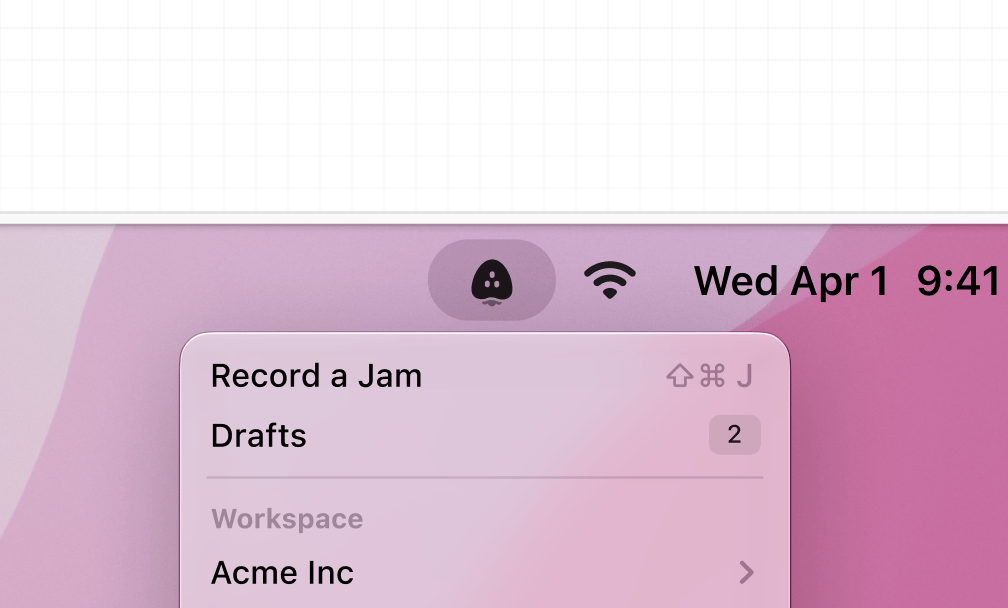 Jam keeps running in the background after you open it. Click the strawberry icon in the menu bar at the top of your screen to open the menu:
* **Record a Jam** starts a recording. The shortcut is **Cmd + Shift + J**.
* **Drafts** opens recordings you have not created a Jam from yet.
* **Workspace** switches the workspace new Jams go to, if you belong to more than one.
* **Browser Extension** shows whether the extension is connected.
* **Open at Login** keeps Jam ready every time you start your Mac.
* **Check for Updates…** installs the latest version.
If you do not see the Jam icon, your menu bar may be full. Open **System Settings → Control Center** to remove icons you do not need.
## Record a Jam
Press **Cmd + Shift + J**, or choose **Record a Jam** from the menu bar. The recording toolbar appears.
Pick **Record Screen**, **Record Window**, or **Record Area**. Jam highlights the screen or window it will capture. For an area, drag the handles to set the region.
Use the microphone and camera menus on the toolbar to pick a device or turn either one off. The camera shows as a floating bubble you can move anywhere on screen.
Click the record button. While recording, the toolbar shows the elapsed time and lets you pause, resume, or restart from the beginning.
Click **Stop** on the toolbar, or choose **Stop Recording** from the menu bar. The draft editor opens.
Recordings can run for up to 10 minutes on the [**Free**](https://jam.dev/pricing) plan and up to 30 minutes on the [**Team**](https://jam.dev/pricing) and [**Enterprise**](https://jam.dev/pricing) plans.
## Edit and create the Jam
When you stop, the draft editor opens with your recording:
* **Trim** the start and end using the timeline under the video.
* **Add a title and description**. If you narrated the recording, Jam can fill these in for you. See [AI titles and descriptions](#ai-titles-and-descriptions).
* **Pick a folder** from the toolbar if you want the Jam in a specific folder.
* Click **Create Jam** to upload.
Jam uploads in the background and shows the progress in the menu bar. When the upload finishes, a notification gives you the link with an **Open** button.
## Drafts
Every recording is saved on your Mac before anything is uploaded, so a recording is never lost if you close the editor or the app.
* Close the editor and choose **Save Draft** to come back later, or **Delete Draft** to discard the recording.
* Open **Drafts** from the menu bar to see saved recordings and continue any of them.
## Where your Jams go
Mac Jams land in the same workspace as your browser Jams. Switch the workspace from the menu bar before you record, and pick a folder in the draft editor. In the dashboard, filter by **Mac App** to see only Jams recorded with the app.
## Browser logs
A Mac recording includes console logs and network requests when the Jam extension is installed in the browser you are recording. The app records the screen, and the extension streams the browser's DevTools data alongside it.
* Install the [Chrome extension](/docs/extension-setup) in the browser you record. It works in every supported Chromium browser (see [browser support](/docs/browser-support)).
* The menu bar shows **Browser Extension** with the browser name and **Connected** once the two are linked. During a recording it changes to **Recording**, and the extension popup shows that it is sending browser logs to the Mac app.
* Logs come from the browser only. Recording a native desktop app captures the video, camera, and device info without console or network data.
Safari support is coming soon. Until then, record in Chrome, Edge, Arc, Brave, or Opera to capture logs.
## AI titles and descriptions
Jam for Mac writes the title and description from what you say while recording. Generation runs on your Mac with Apple Intelligence, so nothing leaves your device for this step. It needs:
* macOS 26 or later.
* Apple Intelligence turned on in **System Settings → Apple Intelligence & Siri**.
* A narrated recording. A silent recording has no transcript to summarize.
* Your Mac's system language set to a language Apple Intelligence supports, and the same language in the app.
If any of these is missing, the title and description stay empty and you can type your own.
## Updates
Jam checks for updates in the background. When one is ready, the menu bar shows **Update Available…**. Choose it to install. Jam quits and reopens, and it never installs an update while you are recording. You can also choose **Check for Updates…** at any time.
## FAQs
No. The app works on its own. The extension is what adds console logs and network requests to a Mac recording.
Yes, and it still can. The Mac app adds a global shortcut, area recording, a camera bubble, longer recordings, and device info, and it works outside the browser.
Yes. Browser and Mac Jams share the same quota on your plan.
Not yet. The shortcut is **Cmd + Shift + J**. See [keyboard shortcuts](/docs/keyboard-shortcuts) for the extension's shortcuts.
On your Mac, in the app's own storage. Open **Drafts** from the menu bar to reach them. Drafts are not synced to the dashboard until you create the Jam.
Jam keeps running in the background after you open it. Click the strawberry icon in the menu bar at the top of your screen to open the menu:
* **Record a Jam** starts a recording. The shortcut is **Cmd + Shift + J**.
* **Drafts** opens recordings you have not created a Jam from yet.
* **Workspace** switches the workspace new Jams go to, if you belong to more than one.
* **Browser Extension** shows whether the extension is connected.
* **Open at Login** keeps Jam ready every time you start your Mac.
* **Check for Updates…** installs the latest version.
If you do not see the Jam icon, your menu bar may be full. Open **System Settings → Control Center** to remove icons you do not need.
## Record a Jam
Press **Cmd + Shift + J**, or choose **Record a Jam** from the menu bar. The recording toolbar appears.
Pick **Record Screen**, **Record Window**, or **Record Area**. Jam highlights the screen or window it will capture. For an area, drag the handles to set the region.
Use the microphone and camera menus on the toolbar to pick a device or turn either one off. The camera shows as a floating bubble you can move anywhere on screen.
Click the record button. While recording, the toolbar shows the elapsed time and lets you pause, resume, or restart from the beginning.
Click **Stop** on the toolbar, or choose **Stop Recording** from the menu bar. The draft editor opens.
Recordings can run for up to 10 minutes on the [**Free**](https://jam.dev/pricing) plan and up to 30 minutes on the [**Team**](https://jam.dev/pricing) and [**Enterprise**](https://jam.dev/pricing) plans.
## Edit and create the Jam
When you stop, the draft editor opens with your recording:
* **Trim** the start and end using the timeline under the video.
* **Add a title and description**. If you narrated the recording, Jam can fill these in for you. See [AI titles and descriptions](#ai-titles-and-descriptions).
* **Pick a folder** from the toolbar if you want the Jam in a specific folder.
* Click **Create Jam** to upload.
Jam uploads in the background and shows the progress in the menu bar. When the upload finishes, a notification gives you the link with an **Open** button.
## Drafts
Every recording is saved on your Mac before anything is uploaded, so a recording is never lost if you close the editor or the app.
* Close the editor and choose **Save Draft** to come back later, or **Delete Draft** to discard the recording.
* Open **Drafts** from the menu bar to see saved recordings and continue any of them.
## Where your Jams go
Mac Jams land in the same workspace as your browser Jams. Switch the workspace from the menu bar before you record, and pick a folder in the draft editor. In the dashboard, filter by **Mac App** to see only Jams recorded with the app.
## Browser logs
A Mac recording includes console logs and network requests when the Jam extension is installed in the browser you are recording. The app records the screen, and the extension streams the browser's DevTools data alongside it.
* Install the [Chrome extension](/docs/extension-setup) in the browser you record. It works in every supported Chromium browser (see [browser support](/docs/browser-support)).
* The menu bar shows **Browser Extension** with the browser name and **Connected** once the two are linked. During a recording it changes to **Recording**, and the extension popup shows that it is sending browser logs to the Mac app.
* Logs come from the browser only. Recording a native desktop app captures the video, camera, and device info without console or network data.
Safari support is coming soon. Until then, record in Chrome, Edge, Arc, Brave, or Opera to capture logs.
## AI titles and descriptions
Jam for Mac writes the title and description from what you say while recording. Generation runs on your Mac with Apple Intelligence, so nothing leaves your device for this step. It needs:
* macOS 26 or later.
* Apple Intelligence turned on in **System Settings → Apple Intelligence & Siri**.
* A narrated recording. A silent recording has no transcript to summarize.
* Your Mac's system language set to a language Apple Intelligence supports, and the same language in the app.
If any of these is missing, the title and description stay empty and you can type your own.
## Updates
Jam checks for updates in the background. When one is ready, the menu bar shows **Update Available…**. Choose it to install. Jam quits and reopens, and it never installs an update while you are recording. You can also choose **Check for Updates…** at any time.
## FAQs
No. The app works on its own. The extension is what adds console logs and network requests to a Mac recording.
Yes, and it still can. The Mac app adds a global shortcut, area recording, a camera bubble, longer recordings, and device info, and it works outside the browser.
Yes. Browser and Mac Jams share the same quota on your plan.
Not yet. The shortcut is **Cmd + Shift + J**. See [keyboard shortcuts](/docs/keyboard-shortcuts) for the extension's shortcuts.
On your Mac, in the app's own storage. Open **Drafts** from the menu bar to reach them. Drafts are not synced to the dashboard until you create the Jam.