> ## Documentation Index
> Fetch the complete documentation index at: https://jam.dev/docs/llms.txt
> Use this file to discover all available pages before exploring further.
# Members and Roles
> Assign Viewer, Creator, and Admin seats so your team gets the right level of access. Your bill reflects only the paid seats you use.
Available to workspaces on our [Team](https://jam.dev/pricing) or [Enterprise](https://jam.dev/pricing) plans.
 ## Seat types
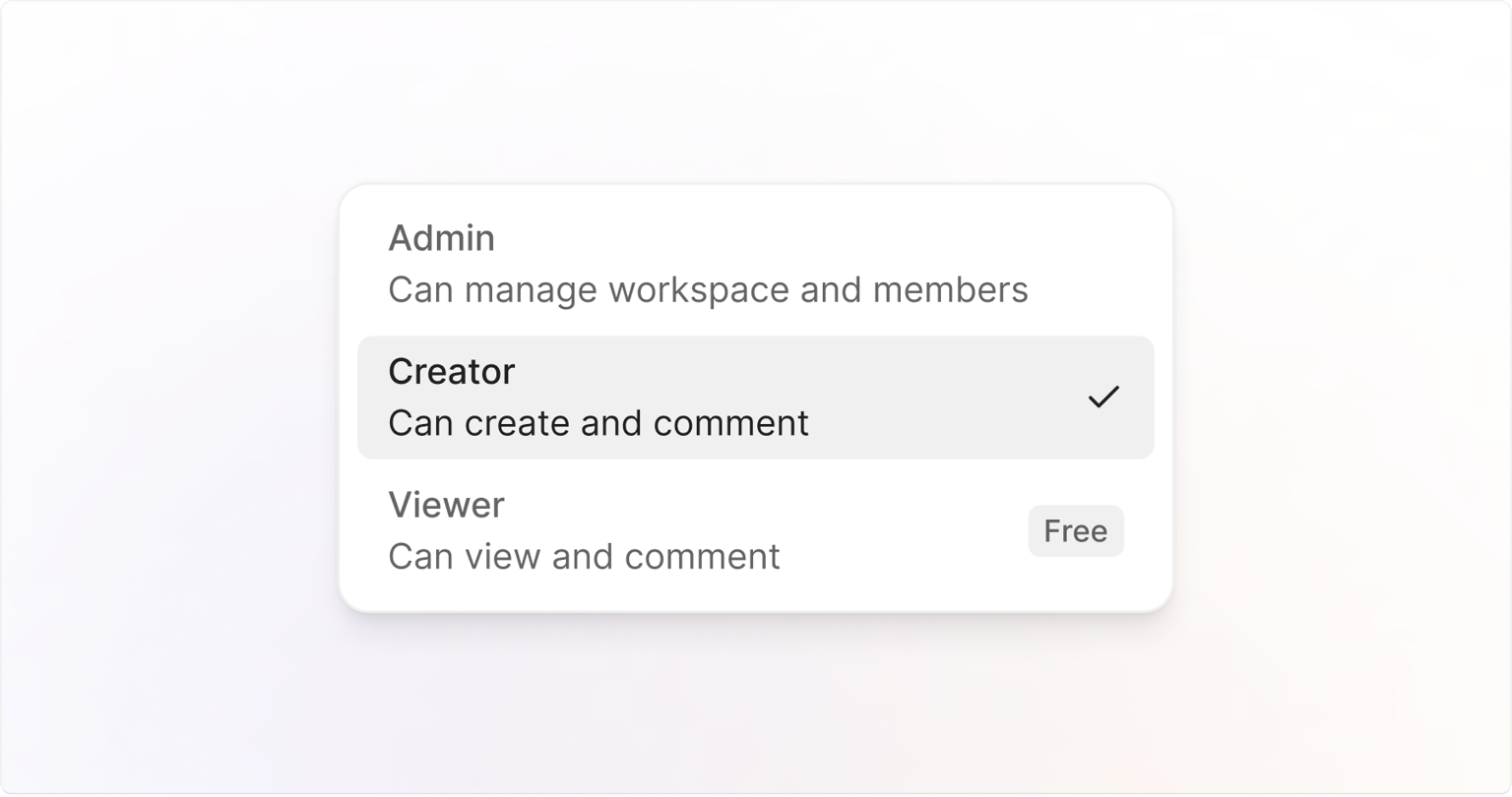
The **Viewer** seat is free and lets people collaborate on Jams. Viewers can access and comment on Jams but cannot create or manage them in workspaces.
Viewers automatically become **Creator seats** when they take certain actions, such as:
* Creating a Jam
* Creating a recording link
* Sending a Jam to an integration
* Moving a Jam into a paid workspace via any integration
By default, all new users join your workspace as creators.
The **Creator** seat is a paid role for people who create and manage content in your workspace. Creators have full capabilities, including:
* Creating, moving, and deleting Jams and recording links
* Moving content between workspaces and integrations
* Actively collaborating within a paid workspace
Creators impact your workspace’s billing, as each Creator occupies a paid seat.
The **Admin** seat is a paid, permanent role for managing settings and members. Admins have all Creator capabilities, plus additional management privileges, including:
* Managing settings and member roles
* Controlling billing and subscription details
* Upgrading or downgrading members between Viewer, Creator, and Admin roles
Admins also occupy a paid seat and directly impact your billing.
## Examples of seat combinations and billing impact
Since your workspace cost depends on seat types, here are common scenarios:
1. **Only free seats:**
* **Alex** is invited to view Jams, give feedback, and comment occasionally but does not create new Jams. Alex uses a **Viewer seat**, so your billing stays unaffected.
2. **Free and paid seats:**
* **Riley** is a product manager who creates Jams regularly as a **Creator**, so billing includes Riley.
* **Joe** is a developer and uses a **viewer seat** to view and comment on Jams created by Riley. Joe’s viewer seat is a free member of your workspace.
* **Jordan** frequently manages members and settings. Jordan has an **Admin seat** and is also a paid member.
3. **All paid seats:**
* **Taylor** actively creates recording links, collaborates on integrations, and manages the workspace. Taylor holds both Creator and Admin capabilities under an **Admin seat**, impacting your billing.
## How people get a paid seat
1. **Self-upgrade (Viewer → Creator)** Viewers can automatically upgrade themselves to a paid Creator seat by performing specific actions:
* **Create** a new Jam
* **Create** a new recording link
* **Move** or copy a Jam into a paid workspace via an integration
* **Send** content to an integration, triggering active collaboration
You cannot downgrade a member to a Viewer seat to prevent future self-upgrades through [**Settings → Members**](https://jam.dev/s/settings/members). Contact [Jam support](https://jam.dev/help) to explore advanced restrictions.
2. **Upgrade via Admin** Admins can manually upgrade a Viewer to a Creator or Admin seat anytime. Admins can also downgrade Creators to Viewers (free) or promote them to Admin.
* On Pro and Team plans, workspace admins fully manage seat types and billing adjustments.
* Admins receive notifications each time someone upgrades their seat automatically or manually, helping maintain control of your workspace billing.
**Example:** Casey starts as a **Viewer**. Casey creates a new Jam to collaborate with their team. Creating the Jam upgrades Casey to a **Creator**, and billing updates automatically.
## Managing seats
### Team plan
Go to [**Settings → Members**](https://jam.dev/s/settings/members).
Click their seat type (Viewer, Creator, or Admin) and select a new seat type from the available options.
### Enterprise plan
If your workspace uses Single Sign-On (SSO) and Active Directory sync, you’ll need to manage member roles directly through your Identity Provider (IdP) and Active Directory. You won’t be able to manage these roles directly in Jam.
## Seat types
The **Viewer** seat is free and lets people collaborate on Jams. Viewers can access and comment on Jams but cannot create or manage them in workspaces.
Viewers automatically become **Creator seats** when they take certain actions, such as:
* Creating a Jam
* Creating a recording link
* Sending a Jam to an integration
* Moving a Jam into a paid workspace via any integration
By default, all new users join your workspace as creators.
The **Creator** seat is a paid role for people who create and manage content in your workspace. Creators have full capabilities, including:
* Creating, moving, and deleting Jams and recording links
* Moving content between workspaces and integrations
* Actively collaborating within a paid workspace
Creators impact your workspace’s billing, as each Creator occupies a paid seat.
The **Admin** seat is a paid, permanent role for managing settings and members. Admins have all Creator capabilities, plus additional management privileges, including:
* Managing settings and member roles
* Controlling billing and subscription details
* Upgrading or downgrading members between Viewer, Creator, and Admin roles
Admins also occupy a paid seat and directly impact your billing.
## Examples of seat combinations and billing impact
Since your workspace cost depends on seat types, here are common scenarios:
1. **Only free seats:**
* **Alex** is invited to view Jams, give feedback, and comment occasionally but does not create new Jams. Alex uses a **Viewer seat**, so your billing stays unaffected.
2. **Free and paid seats:**
* **Riley** is a product manager who creates Jams regularly as a **Creator**, so billing includes Riley.
* **Joe** is a developer and uses a **viewer seat** to view and comment on Jams created by Riley. Joe’s viewer seat is a free member of your workspace.
* **Jordan** frequently manages members and settings. Jordan has an **Admin seat** and is also a paid member.
3. **All paid seats:**
* **Taylor** actively creates recording links, collaborates on integrations, and manages the workspace. Taylor holds both Creator and Admin capabilities under an **Admin seat**, impacting your billing.
## How people get a paid seat
1. **Self-upgrade (Viewer → Creator)** Viewers can automatically upgrade themselves to a paid Creator seat by performing specific actions:
* **Create** a new Jam
* **Create** a new recording link
* **Move** or copy a Jam into a paid workspace via an integration
* **Send** content to an integration, triggering active collaboration
You cannot downgrade a member to a Viewer seat to prevent future self-upgrades through [**Settings → Members**](https://jam.dev/s/settings/members). Contact [Jam support](https://jam.dev/help) to explore advanced restrictions.
2. **Upgrade via Admin** Admins can manually upgrade a Viewer to a Creator or Admin seat anytime. Admins can also downgrade Creators to Viewers (free) or promote them to Admin.
* On Pro and Team plans, workspace admins fully manage seat types and billing adjustments.
* Admins receive notifications each time someone upgrades their seat automatically or manually, helping maintain control of your workspace billing.
**Example:** Casey starts as a **Viewer**. Casey creates a new Jam to collaborate with their team. Creating the Jam upgrades Casey to a **Creator**, and billing updates automatically.
## Managing seats
### Team plan
Go to [**Settings → Members**](https://jam.dev/s/settings/members).
Click their seat type (Viewer, Creator, or Admin) and select a new seat type from the available options.
### Enterprise plan
If your workspace uses Single Sign-On (SSO) and Active Directory sync, you’ll need to manage member roles directly through your Identity Provider (IdP) and Active Directory. You won’t be able to manage these roles directly in Jam.