> ## Documentation Index
> Fetch the complete documentation index at: https://jam.dev/docs/llms.txt
> Use this file to discover all available pages before exploring further.
# Personal Access Tokens
> Create personal access tokens to authenticate MCP clients without the OAuth browser flow. Built for headless environments and CI pipelines.
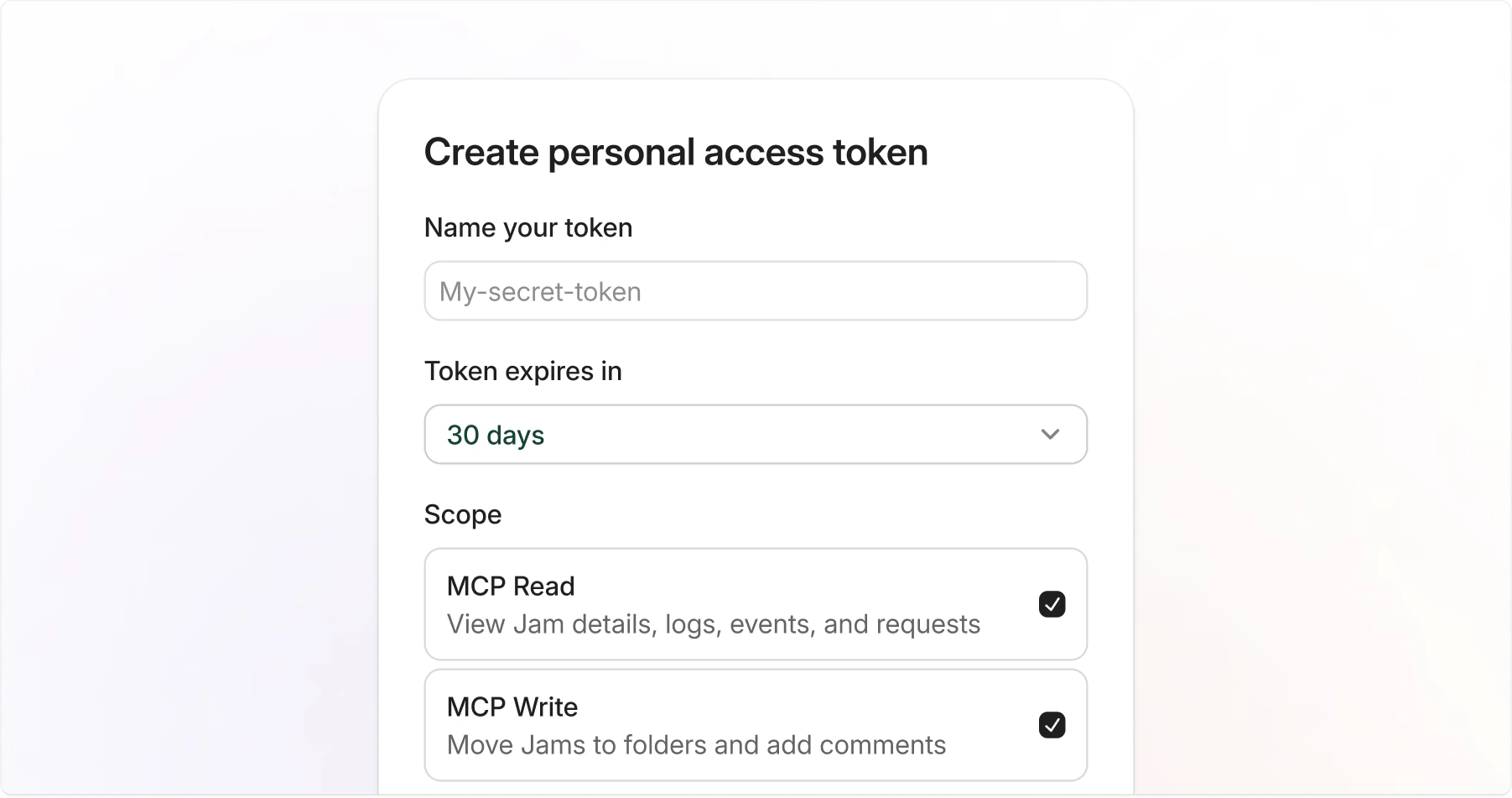 Personal access tokens (PATs) let you connect MCP clients to Jam without going through the OAuth browser flow. Instead of authorizing through a browser, you create a token in your Jam settings and paste it directly into your MCP client configuration.
Each token is scoped to a specific workspace, tied to your user account, and has a mandatory expiration date.
Jam only stores a hash of the token. You cannot retrieve it after creation. Copy your token immediately and store it securely.
## Creating a token
Go to [**Settings → MCP**](https://jam.dev/s/settings/mcp).
Scroll to the **Personal Access Tokens** section and click **Create token**.
Provide the following:
* **Name**: A label to identify the token, such as "Cursor" or "Claude Code".
* **Expiration**: How long the token is valid: 7 days, 30 days, 90 days, or 1 year.
* **Scopes**: The permissions the token needs. See the [Scopes](#scopes) section below.
Click **Create**, then copy your token immediately. You won't be able to see it again.
## Token format
Jam PATs follow a recognizable format:
```text theme={"theme":"css-variables"}
jam_pat_
```
The `jam_pat_` prefix makes it easy to identify Jam tokens in your configuration and helps secret scanners detect accidental exposure.
## Using a token with MCP clients
Use your PAT as a Bearer token when configuring your MCP client. Replace `jam_pat_...` with your actual token.
```bash theme={"theme":"css-variables"}
claude mcp add Jam https://mcp.jam.dev/mcp \
-t http \
-s user \
--header "Authorization: Bearer jam_pat_..."
```
```json theme={"theme":"css-variables"}
{
"mcpServers": {
"Jam": {
"url": "https://mcp.jam.dev/mcp",
"headers": {
"Authorization": "Bearer jam_pat_..."
}
}
}
}
```
Add to your `mcp.json`:
```json theme={"theme":"css-variables"}
{
"servers": {
"Jam": {
"type": "http",
"url": "https://mcp.jam.dev/mcp",
"headers": {
"Authorization": "Bearer jam_pat_..."
}
}
}
}
```
PATs skip the OAuth browser authorization step entirely. This makes them ideal for headless environments or CI pipelines.
## Scopes
Scopes control what a token can do. Select only the scopes you need.
| Scope | Description |
| ----------- | ----------------------------------------------------- |
| `mcp:read` | View Jam details, logs, events, and network requests. |
| `mcp:write` | Move Jams to folders and add comments. |
You must select at least one scope when creating a token.
## Managing tokens
### Viewing your tokens
Go to [**Settings → MCP**](https://jam.dev/s/settings/mcp) to see all personal access tokens for the current workspace. The list shows each token's name, scopes, last used date, and expiration status.
### Revoking a token
Go to [**Settings → MCP**](https://jam.dev/s/settings/mcp) and locate the token you want to revoke.
Click the **...** menu on the right side of the token row.
Select **Revoke token** and confirm the revocation.
Revoking a token is permanent. Any MCP client using the token will immediately lose access.
## Expiration
All tokens have a mandatory expiration date. Choose the expiration period that matches your use case:
| Duration | Recommended for |
| -------- | ------------------------------ |
| 7 days | Short-lived tasks or testing |
| 30 days | Active development work |
| 90 days | Longer-running integrations |
| 1 year | Stable, long-term integrations |
Expired tokens stop working automatically. When a token expires, create a new one and update your MCP client configuration.
## Security best practices
* **Use short-lived tokens**: Choose the shortest expiration that works for your use case.
* **Limit scopes**: Grant the permissions the token needs.
* **Never commit tokens**: Store tokens in environment variables or your MCP client's secure credential storage, not in files checked into version control.
* **One token per client**: Create separate tokens for each MCP client so you can revoke them independently.
* **Revoke immediately if compromised**: If a token may have been exposed, revoke it right away and create a replacement.
Personal access tokens (PATs) let you connect MCP clients to Jam without going through the OAuth browser flow. Instead of authorizing through a browser, you create a token in your Jam settings and paste it directly into your MCP client configuration.
Each token is scoped to a specific workspace, tied to your user account, and has a mandatory expiration date.
Jam only stores a hash of the token. You cannot retrieve it after creation. Copy your token immediately and store it securely.
## Creating a token
Go to [**Settings → MCP**](https://jam.dev/s/settings/mcp).
Scroll to the **Personal Access Tokens** section and click **Create token**.
Provide the following:
* **Name**: A label to identify the token, such as "Cursor" or "Claude Code".
* **Expiration**: How long the token is valid: 7 days, 30 days, 90 days, or 1 year.
* **Scopes**: The permissions the token needs. See the [Scopes](#scopes) section below.
Click **Create**, then copy your token immediately. You won't be able to see it again.
## Token format
Jam PATs follow a recognizable format:
```text theme={"theme":"css-variables"}
jam_pat_
```
The `jam_pat_` prefix makes it easy to identify Jam tokens in your configuration and helps secret scanners detect accidental exposure.
## Using a token with MCP clients
Use your PAT as a Bearer token when configuring your MCP client. Replace `jam_pat_...` with your actual token.
```bash theme={"theme":"css-variables"}
claude mcp add Jam https://mcp.jam.dev/mcp \
-t http \
-s user \
--header "Authorization: Bearer jam_pat_..."
```
```json theme={"theme":"css-variables"}
{
"mcpServers": {
"Jam": {
"url": "https://mcp.jam.dev/mcp",
"headers": {
"Authorization": "Bearer jam_pat_..."
}
}
}
}
```
Add to your `mcp.json`:
```json theme={"theme":"css-variables"}
{
"servers": {
"Jam": {
"type": "http",
"url": "https://mcp.jam.dev/mcp",
"headers": {
"Authorization": "Bearer jam_pat_..."
}
}
}
}
```
PATs skip the OAuth browser authorization step entirely. This makes them ideal for headless environments or CI pipelines.
## Scopes
Scopes control what a token can do. Select only the scopes you need.
| Scope | Description |
| ----------- | ----------------------------------------------------- |
| `mcp:read` | View Jam details, logs, events, and network requests. |
| `mcp:write` | Move Jams to folders and add comments. |
You must select at least one scope when creating a token.
## Managing tokens
### Viewing your tokens
Go to [**Settings → MCP**](https://jam.dev/s/settings/mcp) to see all personal access tokens for the current workspace. The list shows each token's name, scopes, last used date, and expiration status.
### Revoking a token
Go to [**Settings → MCP**](https://jam.dev/s/settings/mcp) and locate the token you want to revoke.
Click the **...** menu on the right side of the token row.
Select **Revoke token** and confirm the revocation.
Revoking a token is permanent. Any MCP client using the token will immediately lose access.
## Expiration
All tokens have a mandatory expiration date. Choose the expiration period that matches your use case:
| Duration | Recommended for |
| -------- | ------------------------------ |
| 7 days | Short-lived tasks or testing |
| 30 days | Active development work |
| 90 days | Longer-running integrations |
| 1 year | Stable, long-term integrations |
Expired tokens stop working automatically. When a token expires, create a new one and update your MCP client configuration.
## Security best practices
* **Use short-lived tokens**: Choose the shortest expiration that works for your use case.
* **Limit scopes**: Grant the permissions the token needs.
* **Never commit tokens**: Store tokens in environment variables or your MCP client's secure credential storage, not in files checked into version control.
* **One token per client**: Create separate tokens for each MCP client so you can revoke them independently.
* **Revoke immediately if compromised**: If a token may have been exposed, revoke it right away and create a replacement.