> ## Documentation Index
> Fetch the complete documentation index at: https://jam.dev/docs/llms.txt
> Use this file to discover all available pages before exploring further.
# Creating a Recording Link
> Collect screen recordings from anyone using a single shareable URL. No extension, no account, no downloads.
A Recording Link is a shareable URL that lets anyone record a bug and send it back to you, complete with console logs, network requests, and device metadata. No install or account required. Recording Links work on any device and are ideal for collecting bug reports from customers, running async user feedback sessions, or debugging remotely with members.
## Create a Recording Link
Click the Jam icon in your browser toolbar.
Select **Recording Links** from the extension menu.
Set a title, folder, or reference (optional), then copy the generated link.
Navigate to [jam.dev/s/recording-links](https://jam.dev/s/recording-links) in your dashboard.
Click **New Recording Link** and fill in the optional fields.
Copy the link and share it with your customer or member.
## Share the link
Send your Recording Link through any channel where you communicate with customers or members:
* Paste it into a **support ticket** or help desk reply
* Include it in a **customer email** when you need more information on a reported issue
* Drop it into **Slack or chat** for async debugging with a member
## What recipients experience
When someone opens a Recording Link, they see a simple recording interface. No downloads, no account setup. They click one button to start recording, reproduce the issue, and submit. Jam automatically captures console logs, network requests, user events, and device metadata in the background. The completed Jam appears in your workspace with a link back to the original Recording Link.
## Link URL parameters
You can pre-fill Recording Link properties by appending query parameters to the URL:
| Parameter | Description |
| --------------- | ----------------------------------------------------------------- |
| `jam-title` | Sets a default title for the Jam the recipient creates |
| `jam-folder` | Places the resulting Jam into a specific folder in your workspace |
| `jam-reference` | Associates the Jam with a ticket, email address, or URL |
## Adding a reference
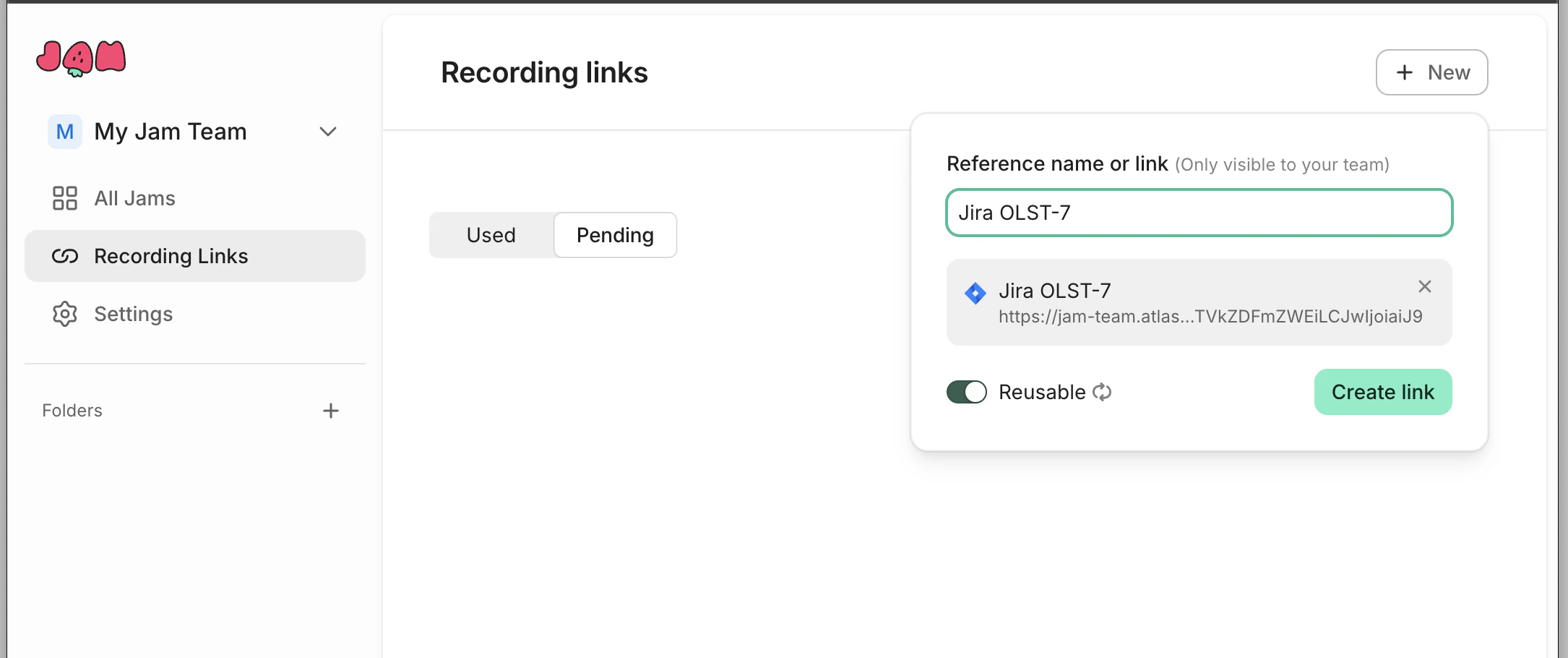
Attach a reference to a Recording Link to automatically link the resulting Jam back to the issue you're tracking.
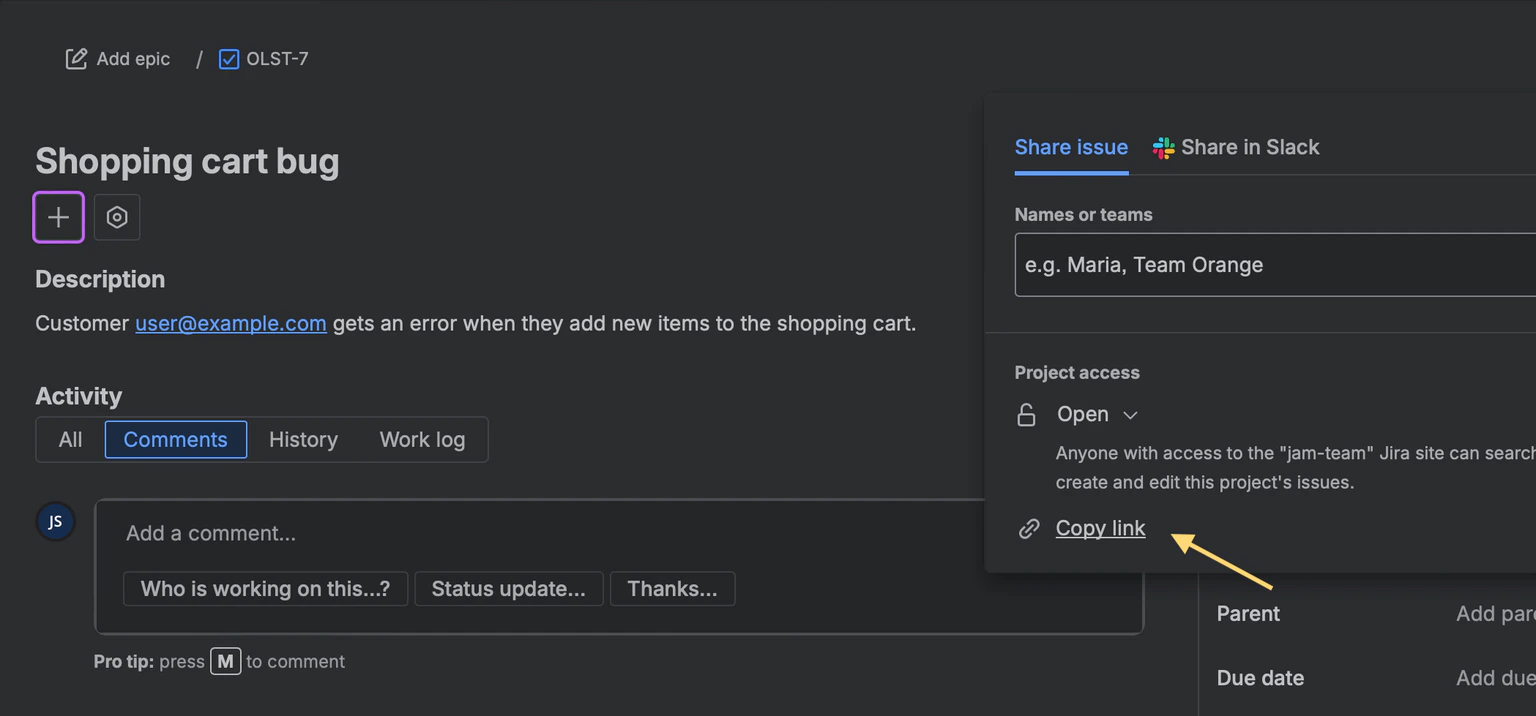
Copy the link to the relevant ticket in your issue tracker (Jira, Linear, GitHub, etc.).
In the **Reference name or link** field, paste the ticket URL. Jam identifies your issue tracker and displays the ticket number.
You can also enter any web URL or email address as a reference.
Share the Recording Link with your customer.
When the customer submits a recording, Jam links the resulting Jam back to your ticket automatically.
## Recording links with console logs
By default, Recording Links capture screen recordings. To also capture console logs, network requests, and user interactions, you need to connect a **custom recording domain**. This installs two lightweight scripts on your site so Jam can collect developer context alongside the video.
**What you get with a custom domain:**
* Console logs and network requests are attached to every customer recorded Jam
* Click and key interaction events
* Device and environment metadata
* Auto-blur of sensitive content
See the [custom domain guide](/custom-recording-domain) for the full setup instructions, troubleshooting, and browser compatibility notes.