Screen Recording Tools For Modern Customer Support Teams

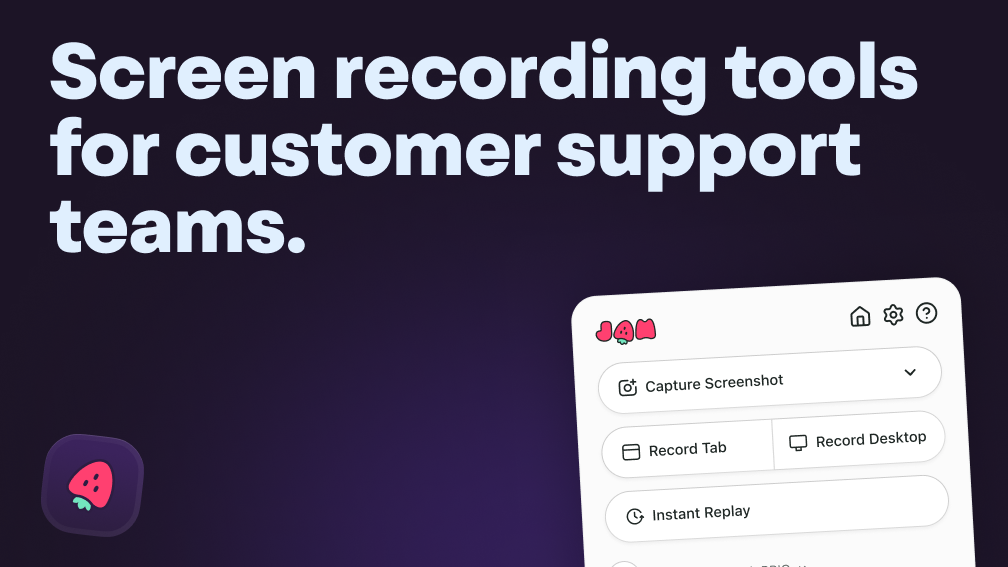
A customer writes "the checkout button isn't working" and your support team sends back five clarifying questions. Three days and a dozen emails later, you're still not sure which button they meant or what browser they were using. Screen recording tools let customers show you the problem in 30 seconds instead of describing it over three days.
The right recording tool captures not just video but the technical context that makes bugs reproducible: console logs, network requests, browser details, error messages. This article covers why support teams adopted screen recording, what features matter for debugging customer issues, and how to integrate recordings into your existing workflow without slowing anyone down.
Why customer support teams rely on screen recording
Picture this: a customer emails your support team saying "the button doesn't work." Which button? What happens when they click it? What browser are they using? You're about to send your fifth follow-up email asking for clarification. Screen recording tools solve this problem by letting customers show you exactly what's happening instead of trying to describe it in words.
The best screen recorders for customer support automatically capture technical details alongside the video: browser console logs, network requests, device specs, error messages. When a customer records their screen, you get the full story: what they clicked, what broke, and why it broke. No more playing detective with incomplete clues.
This changes how fast teams resolve issues. Instead of spending days exchanging emails to understand the problem, support agents see the issue immediately and can route it to engineering with all the context already attached. The ticket that used to take a week now takes a day.
Core features of a support-ready screen recorder
Not every screen recorder works well for customer support. Here are some features you should probably think about:
Instant share links
The recording finishes and generates a URL immediately. No uploading files, no waiting for processing, no hitting email attachment size limits. Your support agent copies the link and pastes it into the ticket or Slack thread within seconds. The engineer on the other end clicks and watches.
Password protection keeps the recording private - only people with the password can view it. Expiration dates automatically revoke access after 48 hours or whenever you specify, which helps with compliance requirements.
Annotation and redaction tools
Arrows and text boxes let you highlight the exact spot where things went wrong. Instead of writing "the error appears in the top right corner near the profile icon," you just draw a circle around it. The person watching the recording sees immediately what you're pointing at.
Redaction tools blur out sensitive information before you share the recording. Password fields, credit card numbers, personal emails - anything that shouldn't leave the customer's screen gets automatically hidden.
Auto capture of logs and metadata
Here's where support-grade recorders separate from basic screen capture tools. When the recording starts, the tool automatically grabs browser console logs, network activity, JavaScript errors, and system information. An engineer watching the recording sees not just the visual bug but also the technical error that caused it.
This turns a simple video into a complete bug report. The developer gets the user's actions, the error logs, and the environment details - browser version, operating system, screen resolution - all in one package. No follow-up questions needed.
Lightweight embeds
Some tools let you embed recordings directly in support tickets so everything stays in one place. Others convert short recordings into animated GIFs, which work better in chat platforms where full video players don't render. A three-second loading error becomes a GIF that loops automatically, making the issue obvious at a glance.
Role based access controls
Your support agents can record and share internally. Your engineering manager can grant external access to customers or vendors. Permissions prevent accidental leaks while keeping workflows flexible enough for different team needs.
Top screen recording tools compared:
Different tools serve different purposes. Loom excels at async team communication but doesn't capture technical debugging data. Jam automatically grabs console logs and network requests, making it better for actual bug investigation. Here's how they compare:
| Tool | Best For | Pricing | Key Integration | Auto-Capture |
|---|---|---|---|---|
| Loom | Team updates | Free to $12.50/user/month | Slack, Notion | Basic metadata only |
| Screencastify | Simple tutorials | Free to $10/user/month | Google Workspace | None |
| Jam | Bug reports | Free to $10/user/month | Jira, GitHub, Slack | Console logs, network data |
| ScreenRec | Privacy focus | Free | Local storage | None |
| Native OS | Quick captures | Free (built-in) | None | None |
Loom
Loom became popular for recording quick video messages to teammates - explaining a concept, giving feedback on designs, replacing a meeting. The sharing works smoothly and the interface stays simple. But it doesn't automatically capture console errors or network requests, which limits its usefulness when you're trying to figure out why a feature broke.
Screencastify
Originally built for teachers creating instructional videos, Screencastify offers straightforward recording with basic editing. The Chrome extension makes it accessible, and anyone can start recording without training. For creating help documentation or tutorial videos, it works fine. For debugging customer-reported issues, it lacks technical depth.
Jam
Jam approaches screen recording as a bug reporting tool first. When someone records with Jam, the extension automatically captures console logs, network activity, browser details, and reproduction steps. The integrations with Jira, GitHub, and Slack mean recordings flow directly into development workflows. A support agent records an issue, and it shows up in Jira as a new ticket with all technical details already populated.
ScreenRec
ScreenRec stores recordings locally instead of uploading them to cloud servers. This appeals to organizations with strict data residency requirements or those handling particularly sensitive information. The annotation tools work well, though engineers still need additional context since it doesn't auto-capture technical data.
Native OS Recorders
QuickTime on Mac and the Game Bar on Windows offer free recording options that come pre-installed. They capture video reliably but provide no support-specific features - no automatic sharing links, no technical metadata, no integrations with ticketing systems. Fine for occasional quick captures, not practical for teams handling dozens of support tickets daily.
How to collect customer screen recordings without friction
Getting customers to record their screens presents a challenge. Many feel uncomfortable with the technology or worry about privacy. Others just don't want to install another piece of software.
- Magic link recorders: Send a URL, customer clicks it, recording starts in their browser without any installation
- In-app recording widgets: Embed a "Report a Bug" button directly in your product so customers can record the moment something breaks
- Pre-written prompts: Guide users with templates like "Show us: 1) Where you clicked, 2) What you expected, 3) What actually happened"
The magic link approach works particularly well for non-technical customers who might abandon the process if asked to download software. The in-app widget catches issues at the moment of frustration, when the customer is most motivated to report the problem.
Step by step workflow to resolve bugs faster with video
Screen recordings integrate into existing support processes. The workflow adapts whether the support agent records their own screen or requests a recording from the customer.
First, either the support agent records while trying to reproduce an issue, or they send a recording request to the customer. Both scenarios capture visual context that text descriptions miss.
Second, the recording tool bundles technical information automatically - browser version, console errors, network requests, JavaScript exceptions. This happens in the background without the customer opening developer tools or copy-pasting error messages.
Third, integrations automatically create or update tickets with the recording and metadata attached. A Jam recording flows directly into Jira as a new issue with technical details already populated in the appropriate fields.
Fourth, developers reproduce the issue using the visual recording and technical logs. They see the user's environment, the sequence of actions, and the underlying errors - everything needed to identify the root cause.
Finally, after deploying a fix, support agents can record a quick video showing the customer that the issue no longer occurs. This provides clear confirmation that the problem has been resolved.
Integrating recordings into help desk and issue trackers
Screen recording tools connect with existing support infrastructure through native integrations and API connections. The goal is keeping recordings and metadata flowing into the systems teams already use daily.
Customer service platforms like Zendesk and Intercom typically support recordings through embedded links or file attachments. More sophisticated integrations automatically create tickets when a customer submits a recording through an in-app widget, pulling in technical metadata as custom fields.
Development-focused integrations with Jira and GitHub transform recordings into actionable bug reports. When a support agent escalates an issue, the recording appears as a new ticket with technical logs already formatted in the description. Developers can start investigating immediately.
Chat platform integrations enable quick internal triage. A support agent shares a recording in a Slack channel to get immediate feedback from engineers about whether an issue requires escalation. The recording plays inline, and team members discuss the problem without switching between tools.
Safeguarding privacy and compliance in recordings
Recording customer screens raises legitimate privacy concerns. Support teams handle sensitive information daily - personal data, financial details, proprietary business information - and recordings can capture all of it.
Modern recording tools address this through several mechanisms:
- Data encryption: Recordings get encrypted during transmission and while stored on servers
- Access logging: Audit trails track who viewed each recording and when
- Retention policies: Automatic deletion after 30, 60, or 90 days
- Geographic restrictions: Data residency controls keep recordings stored in specific regions for GDPR or HIPAA compliance
Automatic blurring detects password inputs, credit card fields, and other sensitive form elements, obscuring them in real time during capture. This happens without manual editing afterward. The support team sees that the customer entered information without seeing the actual sensitive data.
Time-limited sharing URLs automatically become invalid after a set period - typically 24 or 48 hours. Even if someone forwards the link months later, it won't work. This prevents old recordings from remaining accessible indefinitely through links shared in emails.
Measuring impact on resolution times and CSAT
Implementing screen recording tools produces measurable improvements in support metrics. First contact resolution measures how often issues get completely resolved during the initial interaction rather than requiring follow-up tickets. Screen recordings typically increase this metric because support agents and engineers have all necessary information upfront.
Average handle time tracks how long support agents spend on each ticket from initial contact to resolution. While recordings might slightly increase time spent on individual interactions - watching a video takes longer than reading text - they dramatically reduce back-and-forth exchanges. The total time from ticket creation to closure usually drops significantly.
Customer satisfaction scores specifically about the support experience reveal how customers feel about using screen recordings. Many customers appreciate being able to show their problem rather than describe it, which translates to higher satisfaction scores even when the underlying issue takes time to resolve.
Move from tickets to videos in one click with Jam
Traditional support tickets create translation problems. Customers describe issues in non-technical language, support agents interpret and relay that information to engineers, and developers try to reproduce problems based on second-hand descriptions. Each handoff introduces potential misunderstanding.
Jam eliminates these translation layers by capturing everything in a single click. When someone reports a bug through Jam, the recording automatically includes console logs, network activity, browser details, and reproduction steps. The integration with Jira, GitHub, and Slack means this information flows directly into existing workflows without manual data entry.
For support teams tired of playing telephone between customers and engineering, Jam transforms bug reporting from a multi-day process into a single, complete handoff. Install the Jam browser extension to start reporting bugs effortlessly.
FAQs about screen recording tools for customer support
Can teams do a screen recording together?
Yes, most professional screen recording tools support collaborative recording where multiple team members can record their screens simultaneously or take turns during a support session. Tools like Loom and Jam allow teams to share recordings instantly through links, enabling support agents and engineers to collaborate on bug resolution without scheduling synchronous meetings.
What is the Microsoft app for screen recording?
Windows includes the Xbox Game Bar as its native screen recording tool, accessible by pressing Windows Key + G. The Game Bar captures video and audio from your screen without installing additional software, though it lacks support-specific features like automatic technical metadata capture or direct integrations with ticketing systems.
Which software is best for screen recording customer support issues?
Jam works best for customer support teams because it automatically captures console logs, network requests, and browser details alongside the video recording. While Loom excels at team communication and Screencastify handles simple tutorials, Jam transforms recordings into complete bug reports that flow directly into Jira, GitHub, and Slack with all technical context already attached.