

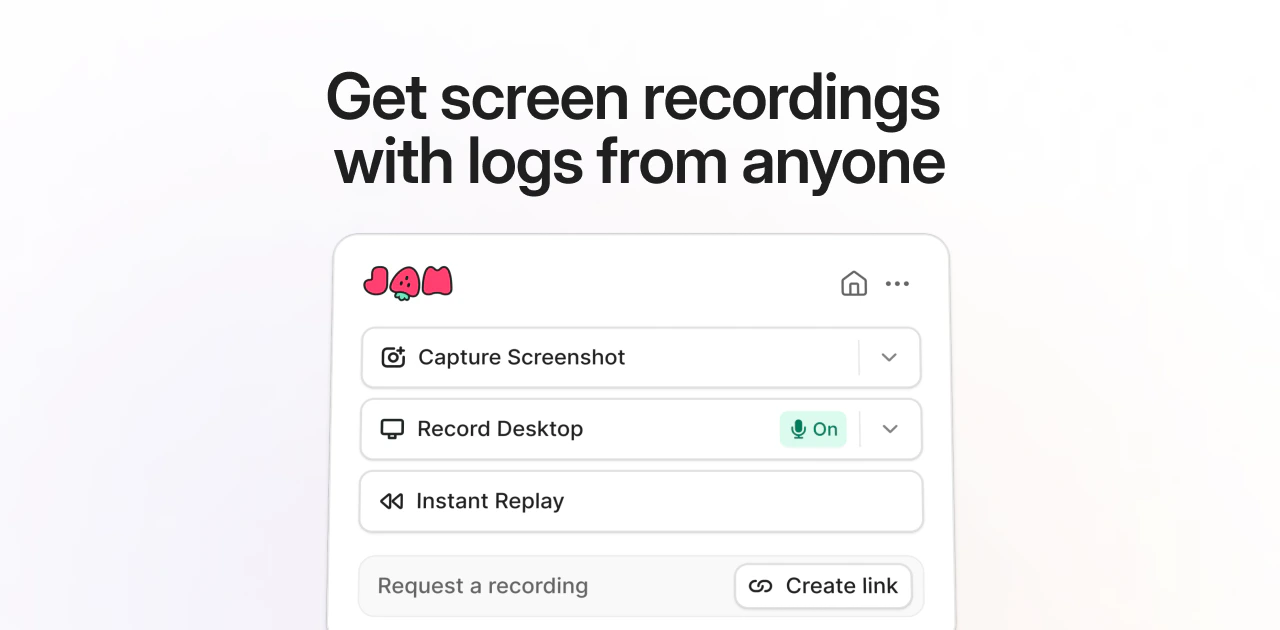
Two ways to create Jams
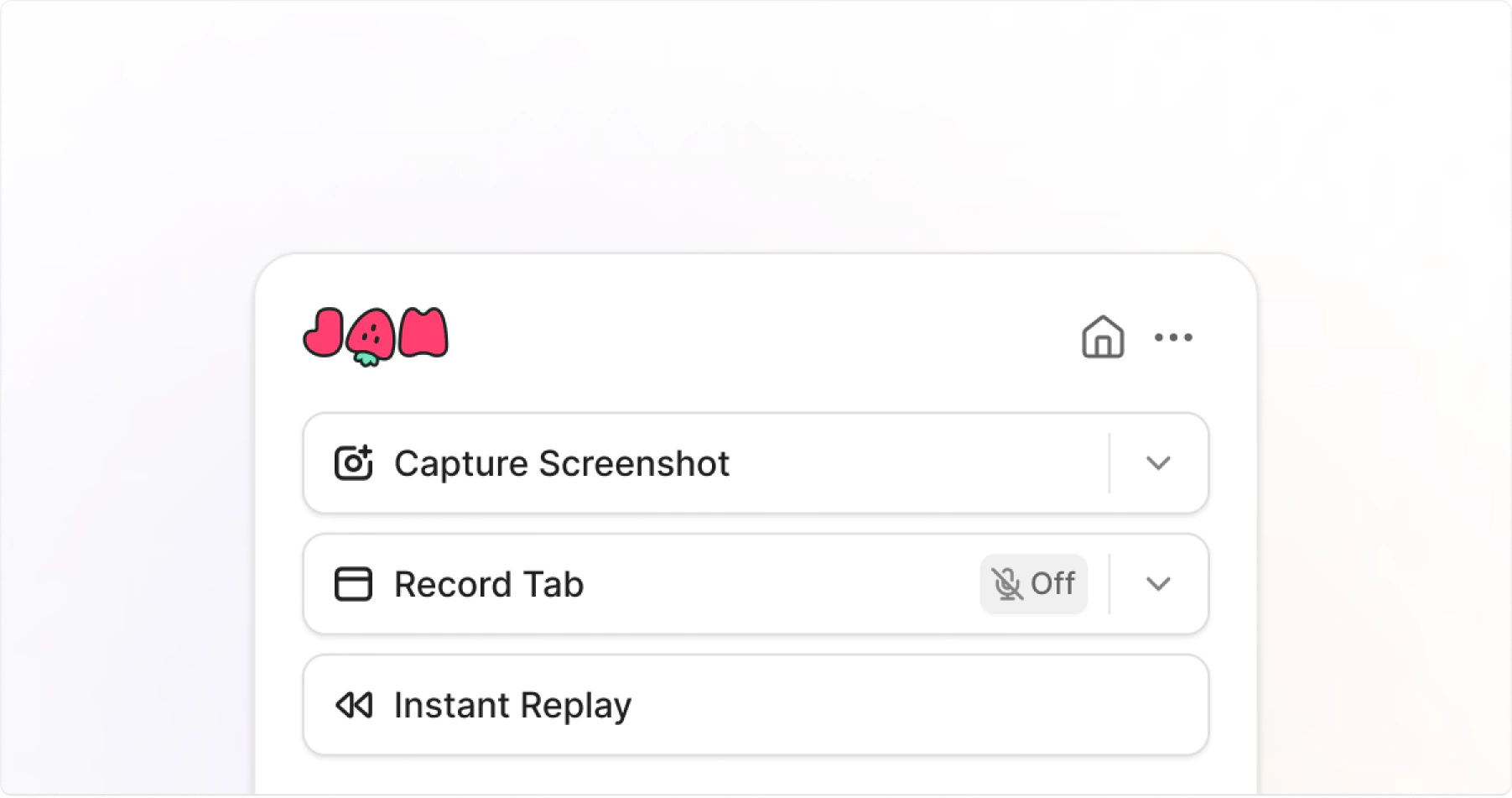
Record a Jam yourself
Capture issues while working with the Chrome extension, Jam for Mac, or Jam for iOS
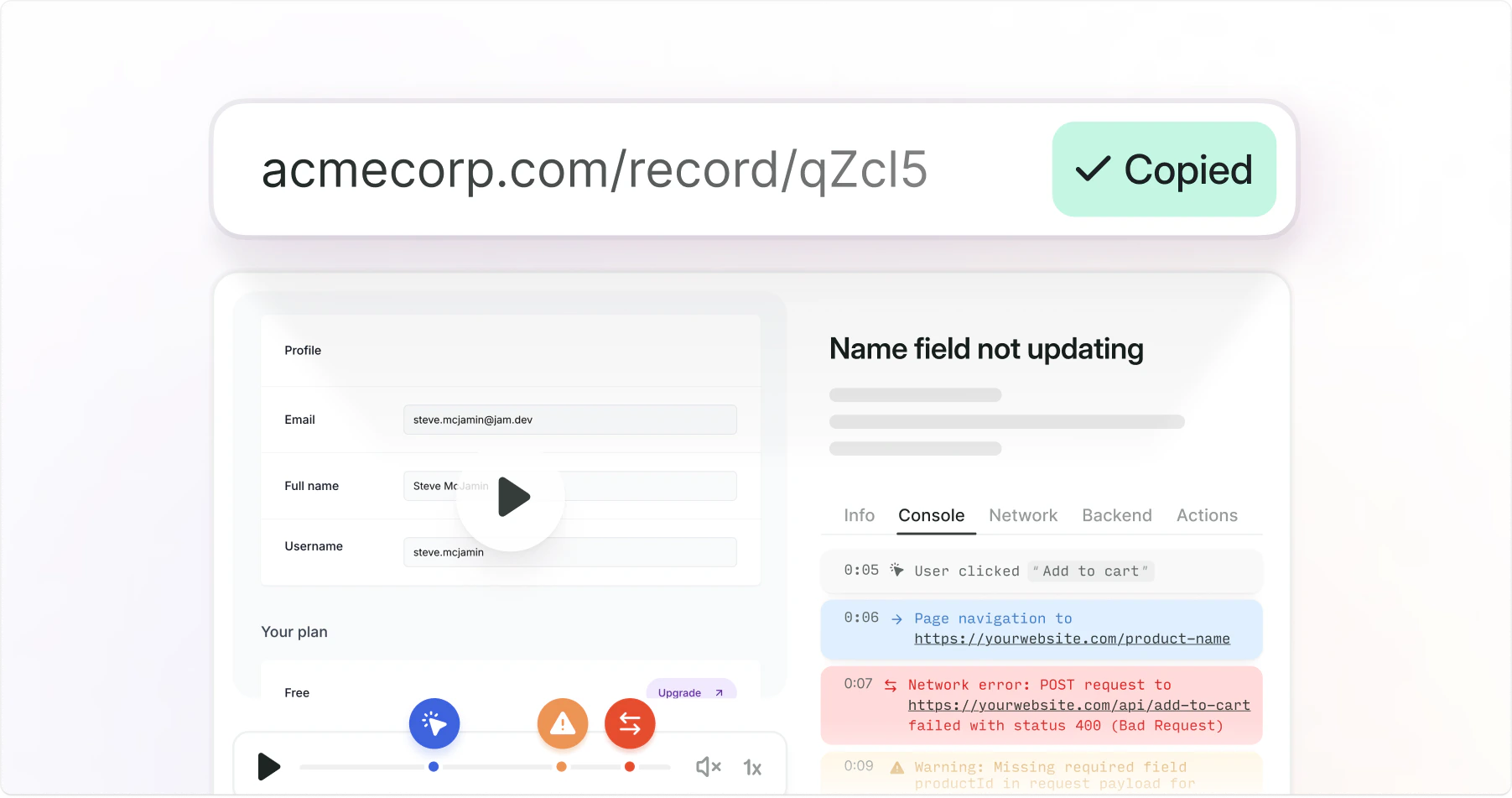
Request a Jam from anyone
Collect recordings from customers, teammates, or external collaborators
What gets captured automatically
Every Jam automatically captures essential debugging information.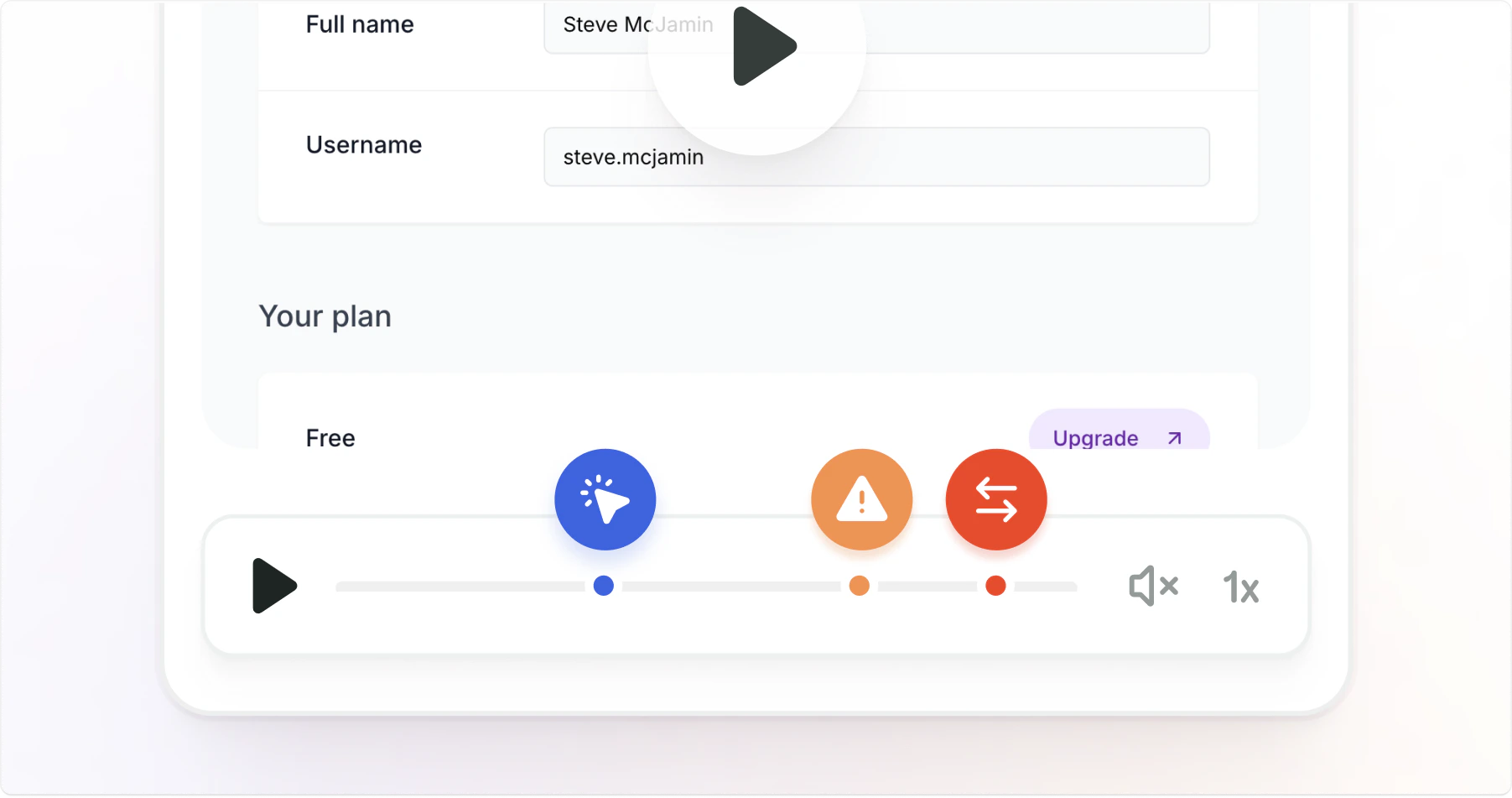
Visual context
Screenshots and screen recordings with annotation tools
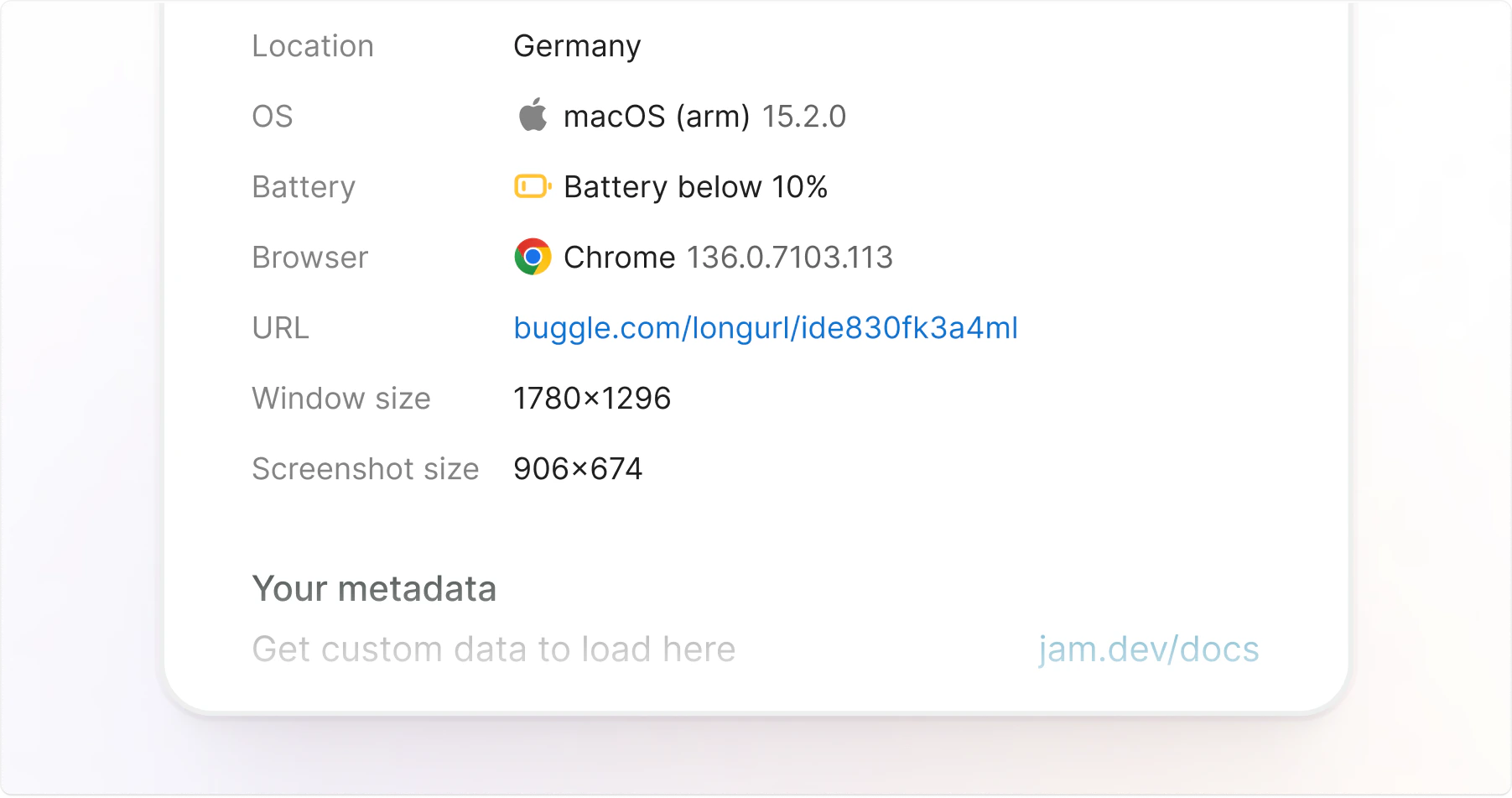
Custom logs
URL, timestamp, device info, browser version, and operating system
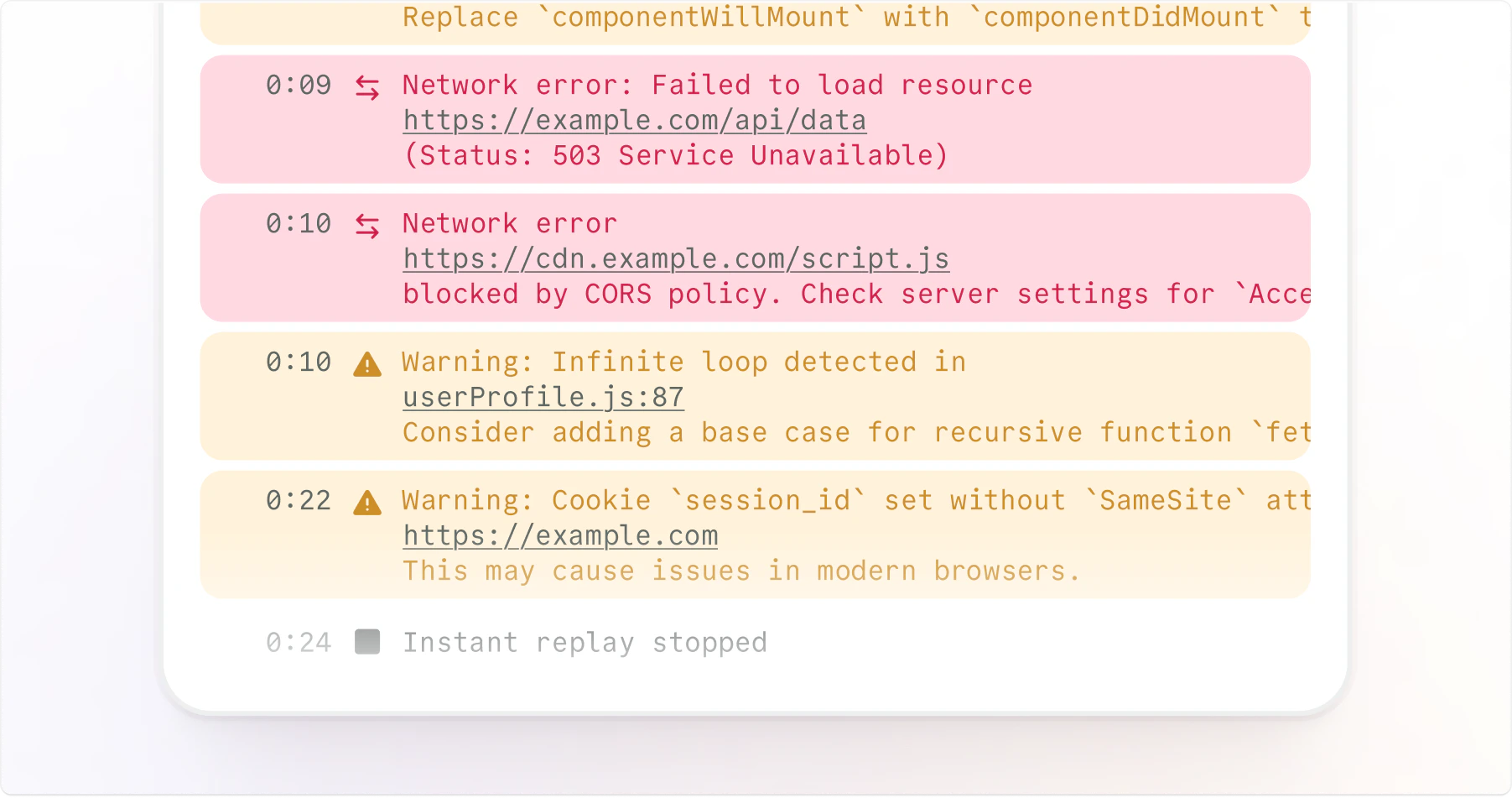
Developer logs
Console logs, network requests, errors, and warnings
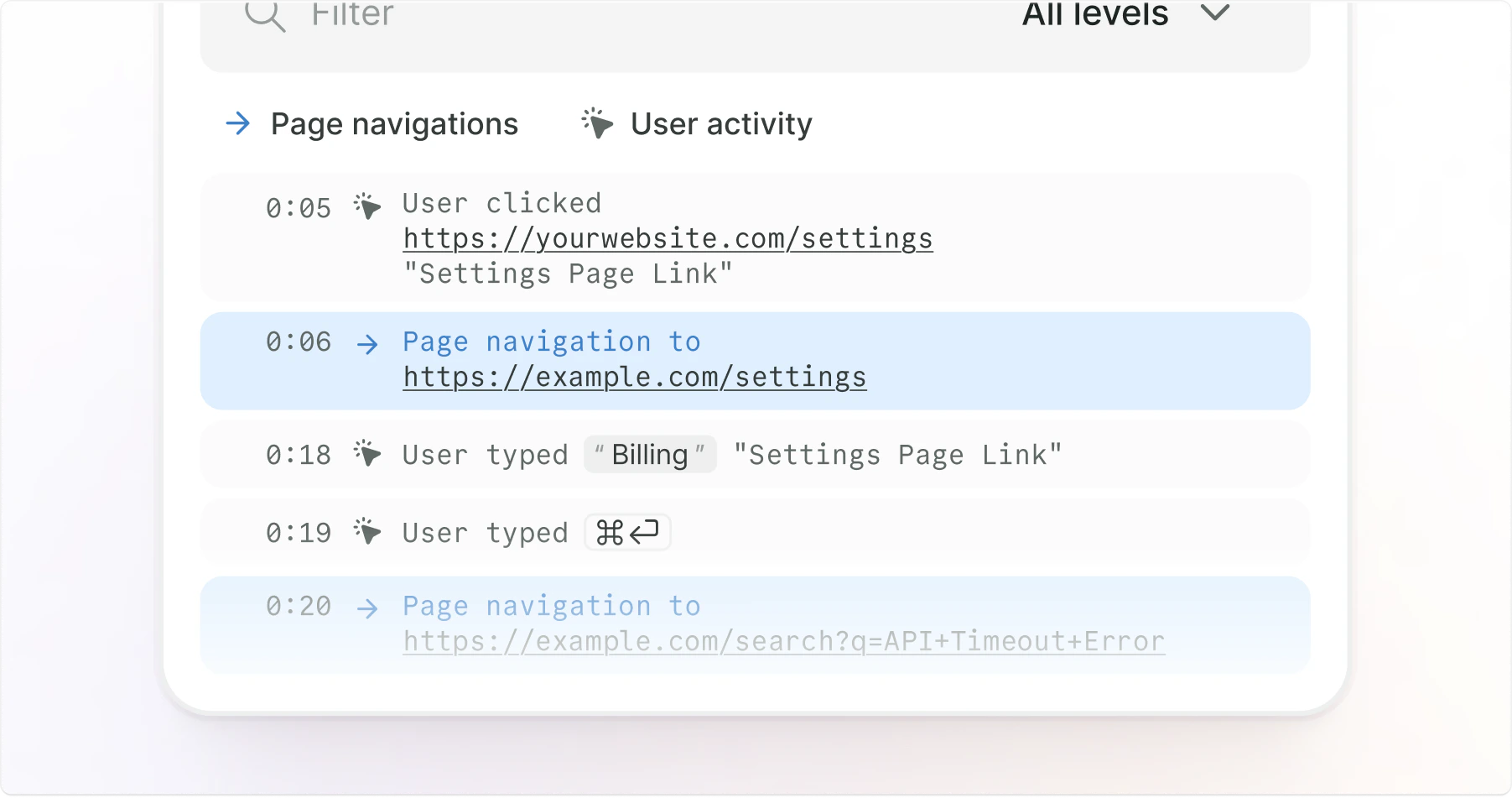
User events
Clicks, navigation events, and typed input
Customization options
Jam’s default capture covers the essentials. You can extend it with custom logs and integrations.Jam SDK
- Custom logs. Push additional context from your app into Jam with a single function call.
- Recording links with console logs. Configure Recording Links to capture console and network logs from customers, with no install required on their end.
Integrations
Jam connects to the tools your team already uses: send Jams to your issue tracker, request recordings from customers through your support desk, and pull in error tracking and session replay context. See the integrations overview for the full catalog.Next steps
Create your first Jam
Capture an issue yourself
Create a Recording Link
Collect issues from customers or teammates
Connect your apps
Send Jams to Jira, Linear, Slack, GitHub, and other tools.
Debug with MCP
Give AI agents the recording, logs, network requests, and user events from a Jam.