

Console logs
Every Jam records the console output from the captured page, with a severity filter to show only errors, warnings, or specific log levels.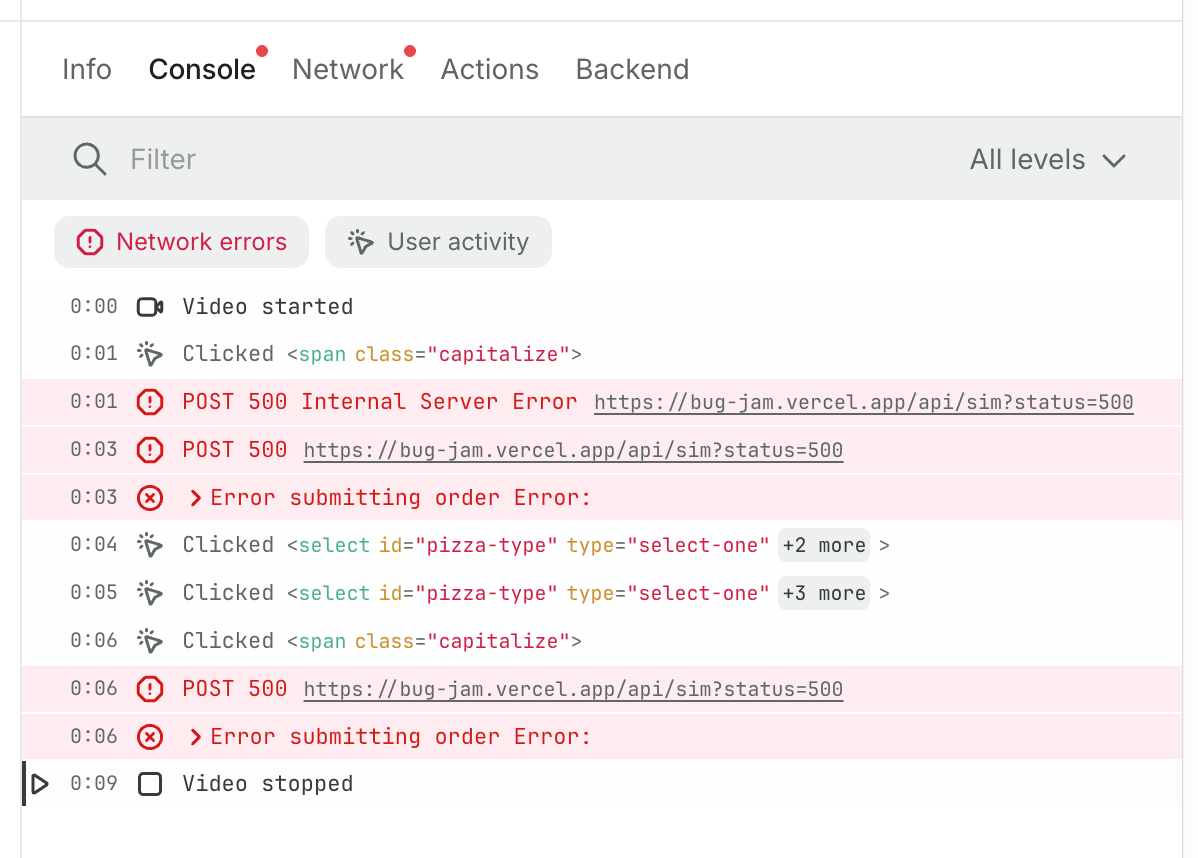
Ignore Jam’s scripts in your browser console
Jam captures console output by wrapping the browser’s console methods. Because of that, your browser’s own DevTools can show Jam’s capture script (host-console-events-document-start.js) as the source of your app’s logs and stack frames.
To see your app’s original call sites, add the script to Chrome’s ignore list:
- Open Chrome DevTools and go to Settings → Ignore list.
- Under Custom exclusion rules, click Add pattern and enter
host-console-events.
If your site loads Jam’s Recording Link capture script, add a
capture.js pattern the same way.Network requests
Jam captures request and response details, including bodies, for all XHR and fetch requests on the page. Each request includes complete timing breakdowns (DNS lookup, connection time, and response duration), matching the data engineers expect from Chrome DevTools.GraphQL
GraphQL returns a 200 status code even when the response body contains errors, and it typically routes every operation through a single/graphql endpoint. That normally means combing through each request to find the failure.
Jam handles both problems automatically:
- Error detection: Jam flags GraphQL responses that contain errors in the response body, even though they return HTTP 200.
- Operation names: Jam detects and shows the GraphQL operation name directly in the request list, so you can identify specific queries and mutations without clicking into each request.
When bodies are missing
A few edge cases prevent Jam from capturing the request or response body:- Timing: the request happened before Jam was initialized on the page. This depends on when your application’s scripts load compared to Jam’s.
- CORS: the browser performed a preflighted OPTIONS check that did not pass, so the request body was never sent.
- Static assets: images, scripts, and other non-programmatic assets (anything that is not XHR, fetch, or WebSockets) are not captured.
Secrets and redaction
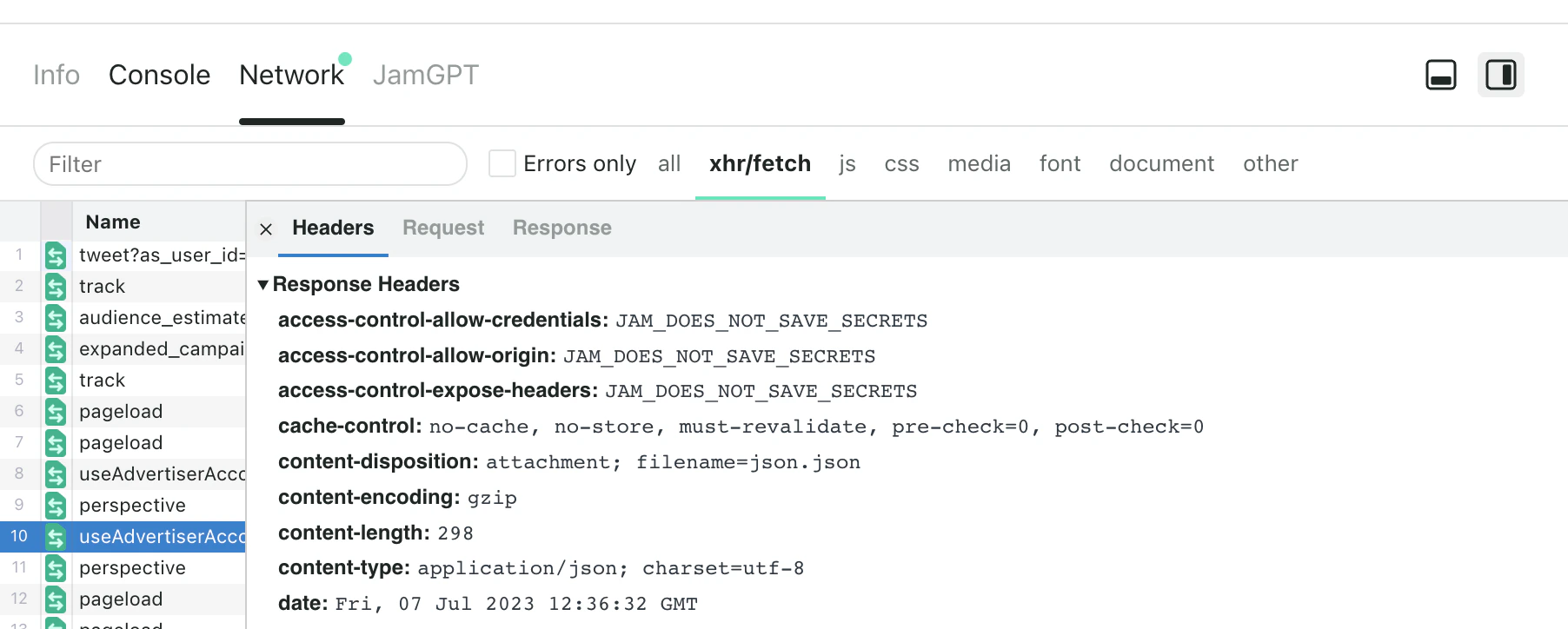
JAM_DOES_NOT_SAVE_SECRETS strings as the values of these headers) has already been filtered before leaving your laptop. It does not reach Jam’s servers.
In the resulting Jam, you will see JAM_DOES_NOT_SAVE_SECRETS in place of any possible secret information.
We prefer to over-filter than under-filter and are taking the route of being overly cautious, so sometimes you will see information filtered out that probably should not have been. Help us improve our filtering accuracy by sending your feedback to hello@jam.dev.
Binary payloads
When a request or response body contains binary content (Protocol Buffers, WebSocket binary frames, MessagePack, gRPC payloads, or other non-text formats), Jam displays a placeholder instead of the raw data:Network speed
Jam records the browser’s own network estimate at the moment the Jam is created. The share page shows it as a tier (Fast, Slow, or Very slow) with the estimated speed in Mbps and the latency, so you can rule the network in or out as a cause. Jam reads this value from the browser instead of running a speed test, so capturing it adds no traffic to the page you are debugging. Two things follow from that:- It is a snapshot, not a benchmark. The browser rounds the numbers into coarse buckets, and Chromium caps the speed estimate at 10 Mbps. A reading of 10+ Mbps means at least that fast, not exactly that fast.
- It is read once, when the Jam is created. A connection that dropped during the recording and recovered before submitting reports as fine.
Only Chromium-based browsers such as Chrome and Edge expose this estimate. Brave removes it, so Jams captured with the extension in Brave do not include it. Firefox and Safari do not expose it either, so Jams submitted through a Recording Link from those browsers do not include it. In both cases the row stays hidden. Older Jams recorded before Jam captured network speed also do not show it.
FAQs
Do I need to enable DevTools manually?
Do I need to enable DevTools manually?
Jams captured with the browser extension include DevTools data automatically.
Jams captured with Recording Links capture the screen only by default. Connect your domain and install Jam’s scripts on your site to collect logs from customers.
Jam for Mac requires the extension in the browser you record for logs capture. Recordings of a native app have no logs. See Browser logs.