

From your browser
1
Install the Chrome extension
Visit the Chrome Web Store and add the Jam extension to your browser.
2
Pin the extension
Pin Jam to your browser toolbar so it’s always one click away during testing and debugging.
3
Create your account
Click the Jam icon, enter your email, and set up your account.
4
Choose a capture method
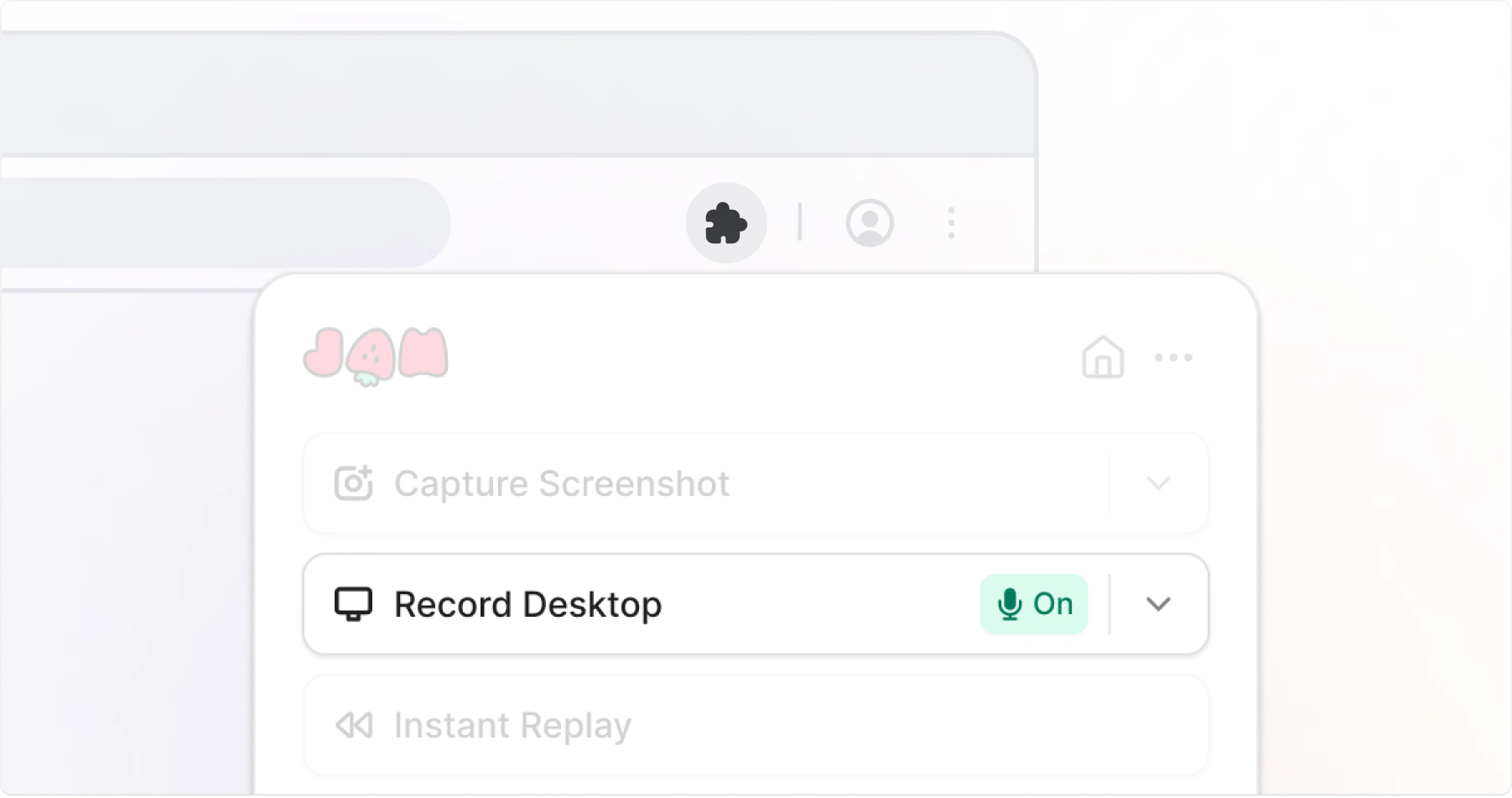
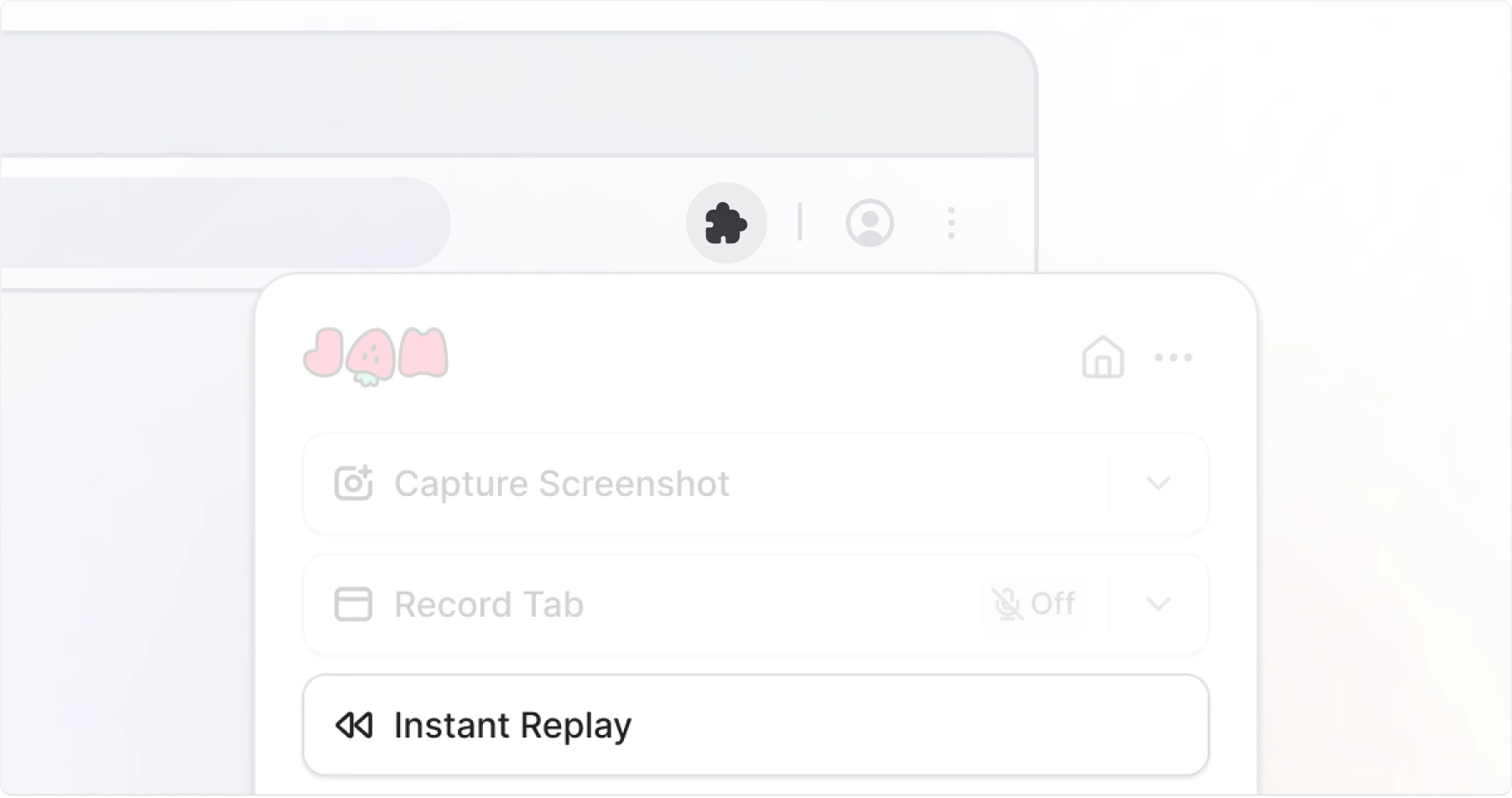
Click the Jam icon in your toolbar and select how you want to capture: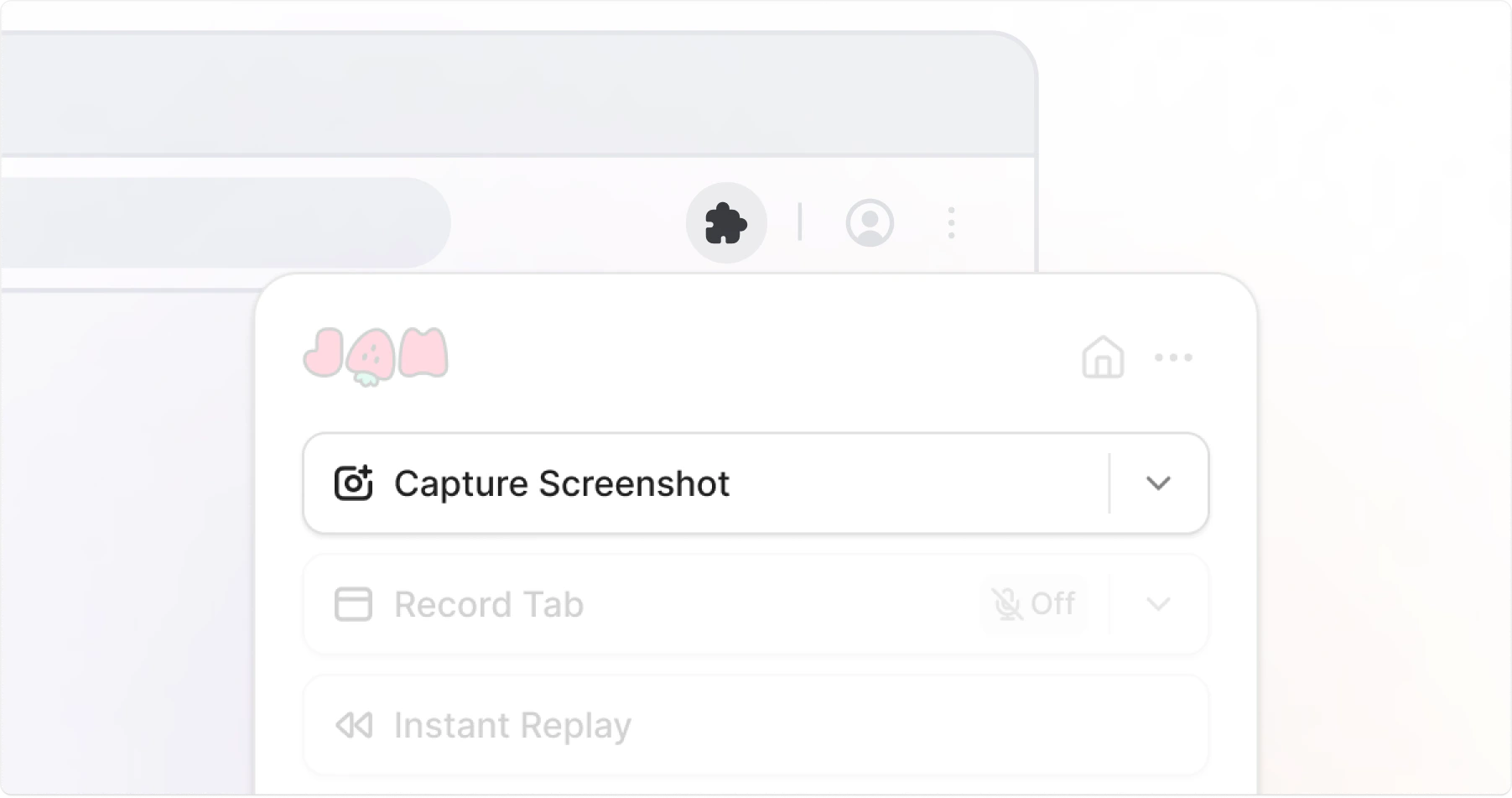
- Screenshot
- Video Recording
- Instant Replay
5
Add a description and create
Add a description, then click Create. Your Jam opens in a new tab with all technical details included, and the link is automatically copied to your clipboard.
6
Share or file a ticket
Paste the Jam link into Slack, a Jira ticket, a GitHub issue, or wherever your team tracks bugs. You can also send it directly to an integration from the Jam share page.
From your Mac
Jam for Mac records beyond your browser, lives in your menu bar, and can capture full screen, a window, or an area, with an optional camera bubble and voiceover.
1
Install Jam for Mac
Download the app, drag it to your Applications folder, launch it, and sign in.
2
Grant recording permission
Enable Screen Recording permission when Jam asks.
3
Start recording
Choose between full screen, a window, or an area, optionally enable camera and microphone and click the record button.
4
Create the Jam
Stop recording, edit or add extra context and click Create Jam. Jam uploads and the link is automatically copied to your clipboard.
Mac recordings include console logs and network requests when the Chrome extension is installed in the browser you record. See Jam for Mac for setup, permissions, drafts, and logs.
From your phone
Jam is currently available for iOS only.
1
Install the iOS app
Download Jam from the App Store.
2
Start recording
Tap the Jam button and begin a screen broadcast to start capturing.
3
Reproduce the issue
Navigate to your app or website and demonstrate the bug.
4
Stop and send
Stop the broadcast, trim your video, add a description, and send to your issue tracker