

Recording Links are shareable URLs that let anyone record their screen and send you a Jam. No browser extension, no account, no downloads required. Generate a link from your dashboard or browser extension, paste it wherever your customers already are, and receive a full recording with technical context the moment they submit.
How it works
1
Generate a recording link
Create a link from your Jam dashboard or from the browser extension.
2
Share the link
Paste it into an email, support ticket, chat message, or customer form.
3
Recipient clicks and records
The link opens directly in their browser. They click Start Recording and capture the issue.
4
Recording appears in your dashboard
You receive an email notification and the Jam appears in your dashboard with full technical context.
Recording Links work on any device. Recipients do not need a Jam account or the browser extension. Compatible with the desktop versions of Chrome, Edge, Firefox, and Safari.
When to use Recording Links
- Customer support. Replace vague descriptions with visual reproductions.
- External bug reports. Get technical context from users outside your team.
- QA workflows. Capture specific scenarios and environments.
- Remote debugging. See issues that occur only in specific setups.
Create a link
- From the browser extension
- From the dashboard
1
Open the extension
Click the Jam strawberry icon to open the extension.
2
Click Create Recording Link
3
Name your link (optional)
Give it a name, or paste the URL of the customer conversation (from Zendesk, HubSpot, Jira, etc.) as the link name for later reference.
4
Choose workspace or domain (optional)
If you have multiple workspaces or custom domains, select the one you want to use. You can also choose a folder to route Jams created from this link into it.
5
Create the link
Click Create link. The link is automatically copied to your clipboard.
Share a link
Recording Links work anywhere you can paste a URL:- Email: “Hi there, can you click this link and show us what you’re experiencing? [recording link]”
- Support tickets: paste directly into Zendesk, Intercom, or HubSpot responses
- Chat messages: Slack, Teams, or any messaging platform
- Customer forms: include in help documentation or contact forms
What recipients experience
The recording flow is designed for non-technical users:- Instant access: the link opens directly in their browser, no downloads
- Simple interface: a large Start Recording button with clear instructions
- One-click recording: captures their screen, showing the bug
- Submit recording: recording uploads automatically and notifies you immediately
View submissions
Jams submitted through a Recording Link appear in your Jam dashboard as regular Jams:- You receive an email notification when a Jam from your Recording Link is recorded.
- Find the recording in your workspace’s Jam dashboard and in the Recording Links page, where you can see all Jams grouped by link.
Reusable links
Recording Links are reusable by default. A single link can receive unlimited submissions, making them ideal for:- Ongoing customer support or QA workflows
- Feedback buttons embedded in your product
- Email signatures
- Pinned Slack messages
URL parameters
Customize the behavior of any Recording Link by appending query parameters to the URL.Set the Jam title
Usejam-title to pre-populate the title of every Jam created from this link:
Additional parameters
Adding a reference
Attach a reference to a Recording Link to automatically link the resulting Jam back to the issue you’re tracking.1
Copy your ticket URL
Copy the link to the relevant ticket in your issue tracker (Jira, Linear, GitHub, etc.).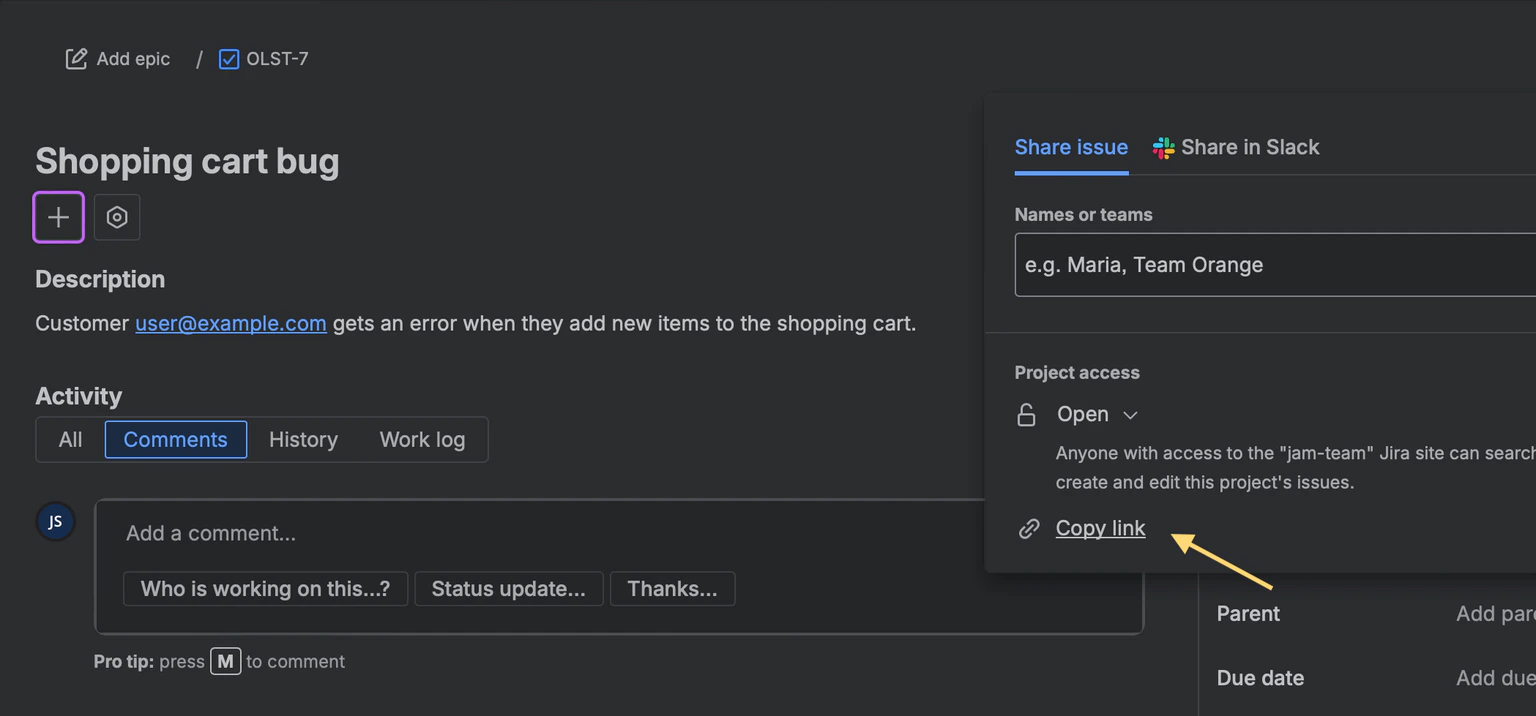
2
Add the reference when creating the link
In the Reference name or link field, paste the ticket URL. Jam identifies your issue tracker and displays the ticket number.You can also enter any web URL or email address as a reference.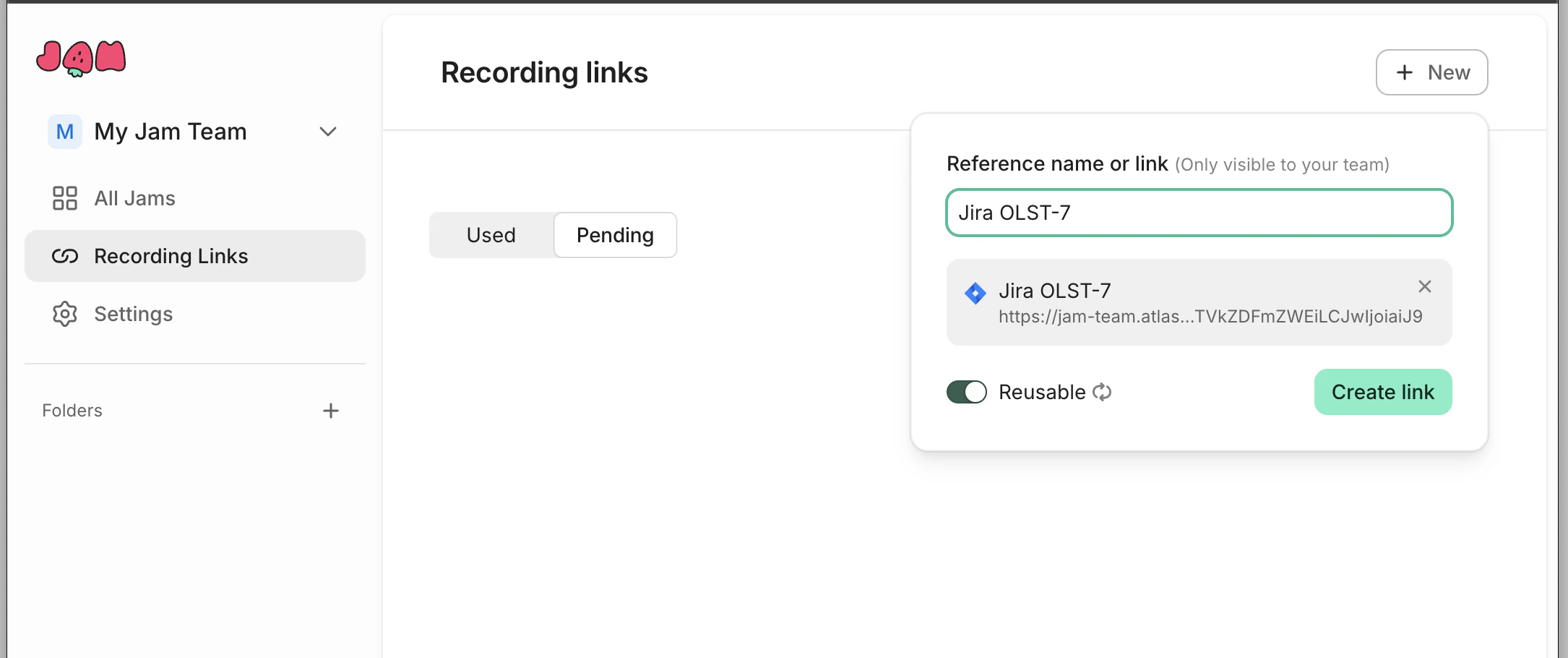
3
Send the Recording Link
Share the Recording Link with your customer.
4
Jams link back automatically
When the customer submits a recording, Jam links the resulting Jam back to your ticket automatically.
Capture logs from your domain
By default, Recording Links capture only screen recordings. To also collect console logs, network requests, user interaction events, and enable automatic blurring, you need to connect your domain and install Jam’s scripts on your site. Once configured, logs are automatically attached to each submitted Jam.See Connect your domain for the full setup guide.
Privacy and automatic blurring
When your domain is connected, Jam can automatically detect and blur sensitive information during recordings. Blurring happens directly in the browser before the recording is uploaded, so sensitive data never leaves the user’s device unprotected.What gets blurred automatically
Jam detects and blurs the following by default:- Password fields
- Credit card numbers (including CVV, expiration, and card number fields)
- Social security numbers and tax IDs
- Bank account and routing numbers
- Passport and driver’s license fields
- Phone numbers and email addresses
- API keys and tokens
Custom blur rules
If you run Jam on your own domain, control blur behavior with HTML data attributes:<meta> tag:
Manual opt-out (
data-jam-blur="false") overrides all other blur rules, including custom selectors.Limitations
- Content inside iframes must be blurred entirely. Selective blurring inside an iframe is not supported.
- Flashes of unblurred content may occur on page load if your UI initializes before Jam.js. Move Jam.js initialization earlier in your page’s execution to prevent this.
- When the browser window is resized during a recording, blurred content may briefly become visible as the page reflows.
FAQ
Can anyone use a Recording Link?
Can anyone use a Recording Link?
Yes. Anyone with the link can record. No account or installation is required.
Do Recording Links expire?
Do Recording Links expire?
No. Recording Links are reusable and do not expire. A single link can receive unlimited submissions.
Can I restrict who can submit recordings?
Can I restrict who can submit recordings?
Recording Links are accessible to anyone with the URL. There is no way to restrict submissions to specific users.
Do Recording Links capture console logs automatically?
Do Recording Links capture console logs automatically?
No. By default, Recording Links capture screen recordings only. To capture console logs and network requests, you must connect your domain and install Jam’s Recorder and Capture scripts.
Are recordings secure?
Are recordings secure?
Yes. Jam automatically blurs sensitive information directly in the browser before the recording is uploaded. Sensitive data never reaches Jam’s servers unprotected.
Can I customize what happens when someone submits a recording?
Can I customize what happens when someone submits a recording?
Yes. Use URL parameters to route recordings to specific folders (
jam-folder), set a custom Jam title (jam-title), or associate a reference URL or user identifier (jam-reference).