

- Serve Recording Links from your own domain, so links look branded and familiar to your customers.
- Capture console logs and network requests on every recording.
- Attach developer logs directly to Jams.
- Auto-blur sensitive fields like passwords and payment details while recording.
Every snippet on this page has a runnable example in the recording-links-demos repo, including HTML, Next.js, Angular, and Google Tag Manager.
Setup
1
Install the code snippets
Open Settings → Jam SDK and pick your framework. The snippet there has your Team ID filled in, and the picker keeps your selection in the address bar (for example, 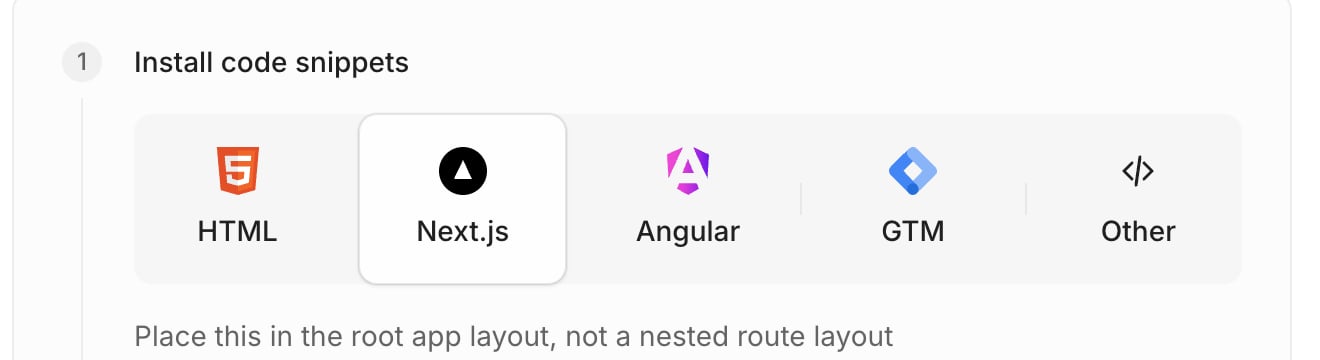
?framework=angular), so you can share a link that opens on the right snippet.- HTML
- Next.js
- Angular
- Google Tag Manager
Paste this into the
<head> of every page.recorder.jsshows the recording interface when a Recording Link is opened, and lets users record directly from your site.capture.jscaptures console logs, network requests, and click and key interactions while a recording is in progress.
jam:team meta tag per workspace.Performance note: Jam caches assets aggressively to reduce load. For the plain HTML snippet, place the <script> tags as early as possible in <head>. Loading them with async, defer, or lazy import() can skip early logs and requests. The Next.js beforeInteractive strategy and the SDK handle this for you.2
Update your Content Security Policy (if applicable)
If your site doesn’t define any Content Security Policy directives, skip this step.If your site sets a CSP with
frame-src or script-src, add *.jam.dev to both. Otherwise the Jam scripts are blocked.3
Verify your domain
After installing the scripts, verify your domain so Jam confirms they load and run correctly.
- Go to Settings → Jam SDK.
- Under Verify domain, paste the URL where the scripts are installed (for example,
example.comorexample.com/recorder). - Click Verify.
- The page is publicly accessible.
- The URL doesn’t redirect.
- Query parameters are preserved.
- Both the Recorder and Capture scripts are installed with a matching Team ID.
Check your connection status
Jam shows your connection status in two places, so you can tell at a glance whether a recording will capture logs:- The Recording Links header: the globe button carries a status dot. Red means no domain is connected yet, and clicking it starts setup. Green means at least one domain is connected, and hovering shows which one.
- The domain picker when you create a Recording Link: each domain under Start recording from shows a dot. Green means Log capture enabled (the domain is verified). Red means Log capture disabled. The default
recorder.jam.devrecords fine, but can’t capture your site’s logs, so it always shows red. Connect your domain at the bottom of the dropdown starts setup for another domain.
Connect more than one domain
Once your first domain is verified, open Settings → Jam SDK and click Add another domain to connect the next site to the same workspace. This opens the same install and verify steps. Each connected domain appears in the list marked Installed, and shows up in the domain picker when you create a Recording Link.Domain and subdomain behavior
In most cases, a recorder installed on the root domain (example.com) can capture events from subdomains (sub.example.com), and vice versa.
Safari limitation: In Safari, logs are only captured when the recorder and capture scripts run on the exact same subdomain. If Safari support is important for your team, install the recorder on the same subdomain where your users are active.
Current limitations
FAQ
Can I put the Recorder and Capture scripts on different pages?
Can I put the Recorder and Capture scripts on different pages?
Yes. The
<meta name="jam:team" /> tag must be present on any page where recorder.js is installed. It’s optional on pages that only include capture.js. Logs are only captured from pages where the Capture script is running.Can I programmatically create Recording Links?
Can I programmatically create Recording Links?
Not yet. Jam plans to expose an API for creating Recording Links programmatically (for example, from Slack, Zendesk, or directly within your app).
Can I customize the recorder UI?
Can I customize the recorder UI?
Not currently. Contact Jam if you have specific customization requirements.
Can I mix Jam recordings with my own recording infrastructure?
Can I mix Jam recordings with my own recording infrastructure?
No. Jam’s Recorder and Capture scripts must be used together. Due to browser storage and cross-origin restrictions, partial integrations or mixing with external recording systems are not supported.
If verification fails
When Jam can’t find the scripts on your URL, verification stops with Scripts not detected. Ensure both code snippets are installed here and try again. Common causes:- Team ID mismatch
- Scripts not installed on the target URL
- Scripts blocked by your CSP
- URL requires authentication
- URL redirects before scripts load
- Query parameters stripped during redirect
- Recorder and Capture scripts on different domains