

Available to workspaces on our Team or Enterprise plans.
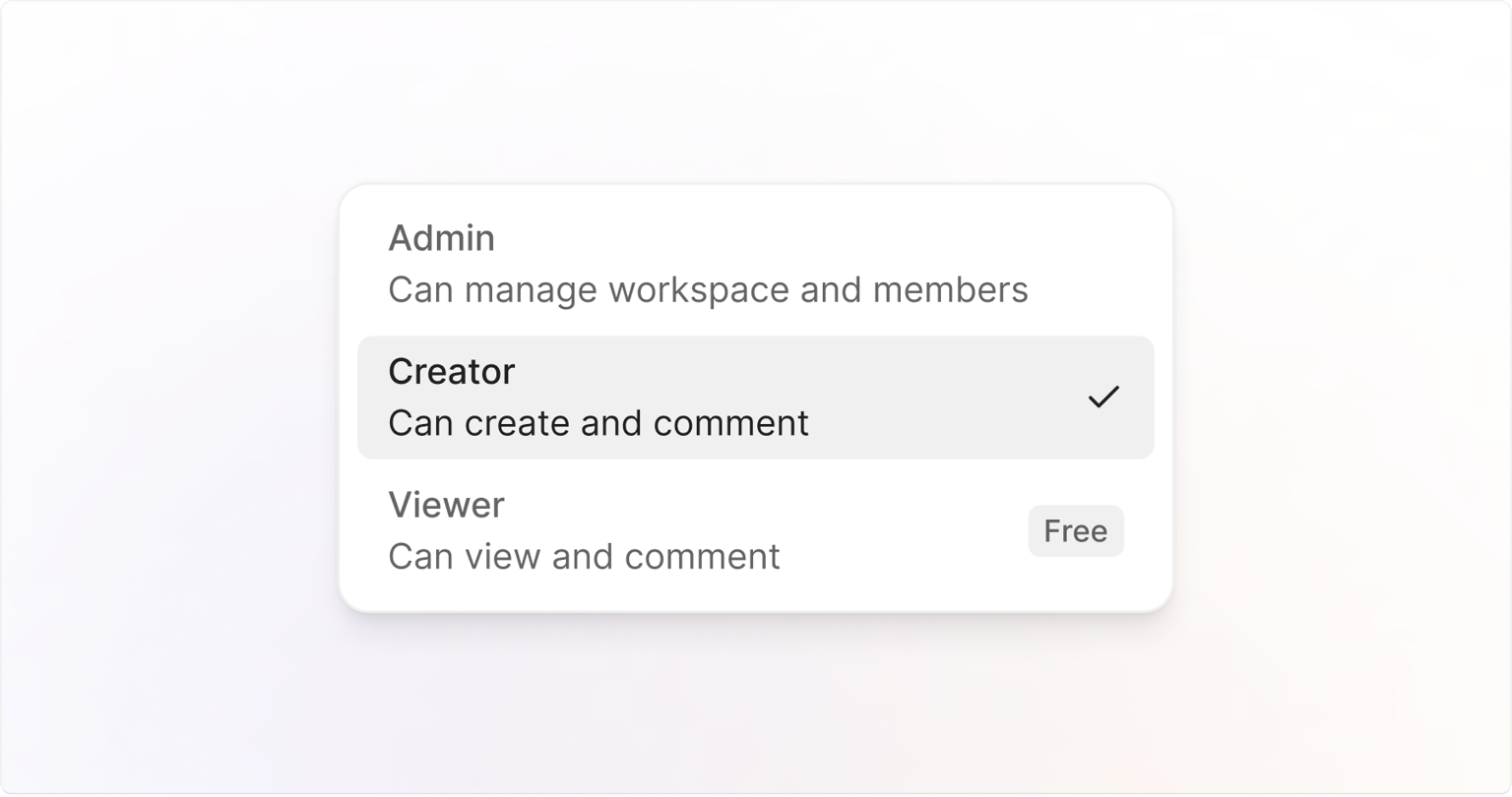
Seat types
Viewer (free)
Viewer (free)
The Viewer seat is free and lets people collaborate on Jams. Viewers can access and comment on Jams but cannot create or manage them in workspaces.Viewers automatically become Creator seats when they take certain actions, such as:
- Creating a Jam
- Creating a recording link
- Sending a Jam to an integration
- Moving a Jam into a paid workspace via any integration
Creator (paid)
Creator (paid)
The Creator seat is a paid role for people who create and manage content in your workspace. Creators have full capabilities, including:
- Creating, moving, and deleting Jams and recording links
- Moving content between workspaces and integrations
- Actively collaborating within a paid workspace
Admin (paid)
Admin (paid)
The Admin seat is a paid, permanent role for managing settings and members. Admins have all Creator capabilities, plus additional management privileges, including:
- Managing settings and member roles
- Controlling billing and subscription details
- Upgrading or downgrading members between Viewer, Creator, and Admin roles
Examples of seat combinations and billing impact
Since your workspace cost depends on seat types, here are common scenarios:- Only free seats:
- Alex is invited to view Jams, give feedback, and comment occasionally but does not create new Jams. Alex uses a Viewer seat, so your billing stays unaffected.
- Free and paid seats:
- Riley is a product manager who creates Jams regularly as a Creator, so billing includes Riley.
- Joe is a developer and uses a viewer seat to view and comment on Jams created by Riley. Joe’s viewer seat is a free member of your workspace.
- Jordan frequently manages members and settings. Jordan has an Admin seat and is also a paid member.
- All paid seats:
- Taylor actively creates recording links, collaborates on integrations, and manages the workspace. Taylor holds both Creator and Admin capabilities under an Admin seat, impacting your billing.
How people get a paid seat
- Self-upgrade (Viewer → Creator) Viewers can automatically upgrade themselves to a paid Creator seat by performing specific actions:
- Create a new Jam
- Create a new recording link
- Move or copy a Jam into a paid workspace via an integration
- Send content to an integration, triggering active collaboration
Downgrading a member to a Viewer seat doesn’t stop them from self-upgrading again. To turn off automatic upgrades for the whole workspace, switch off Auto-approve seats in Settings → Billing. Viewers then keep their free seats until an admin upgrades them. Only admins on paid plans can change this setting. - Upgrade via Admin Admins can manually upgrade a Viewer to a Creator or Admin seat, or downgrade Creators to Viewers (free) anytime.
- On Team plan, workspace admins fully manage seat types and billing adjustments.
- Admins receive notifications each time someone upgrades their seat automatically or manually, helping maintain control of your workspace billing.
Example: Casey starts as a Viewer. Casey creates a new Jam to collaborate with their team. Creating the Jam upgrades Casey to a Creator, and billing updates automatically.
Managing seats
Team plan
1
Open Settings → Members
Go to Settings → Members.
2
Change a member's seat type
Click their seat type (Viewer, Creator, or Admin) and select a new seat type from the available options.