

Prerequisites
You need a Jam recording before your agent can use MCP.1
Install the Jam Chrome extension
Install the Chrome
extension
from the Chrome Web Store.
2
Record a Jam
Hit Record to capture your screen and voice.
3
Copy your Jam link
Stop the recording. Your Jam link is ready for an agent to consume via MCP.
Step 1: Configure your MCP client
- ChatGPT
- Claude
- Cursor
- VS Code
- Windsurf
- OpenCode
Jam plugin for ChatGPT
Install the plugin, then sign in to Jam and allow access to your workspace.
Step 2: Start using Jam MCP
Once your MCP client is configured:1
Copy your Jam link
Copy one or more Jam links from your workspace.
2
Prompt your agent
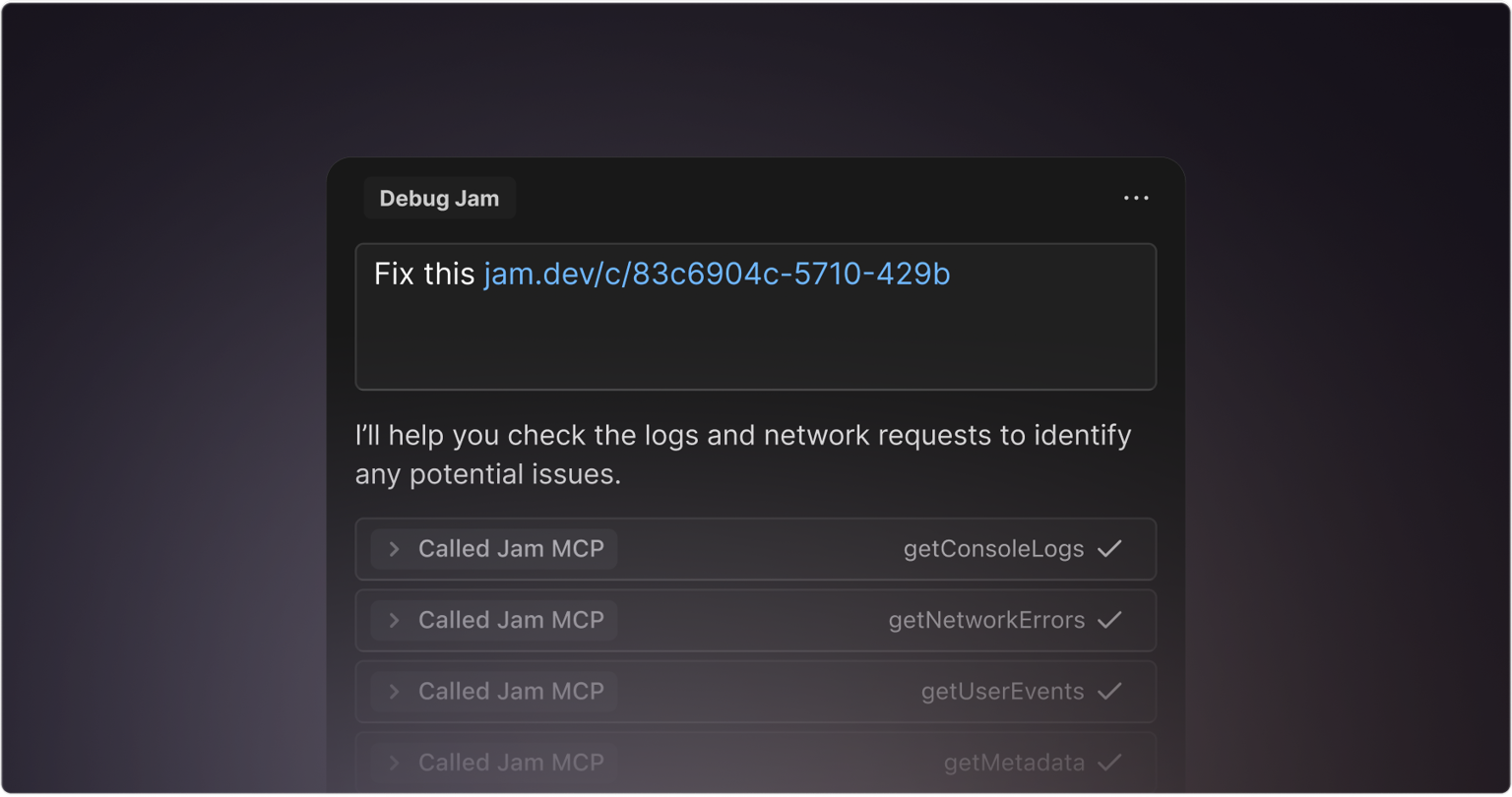
Paste the Jam link into your agent’s chat and describe what you need. See
the prompting tips and examples below.
3
Authenticate
Authenticate your IDE with Jam when prompted.
4
Approve tool requests
Approve any tool requests the agent makes as it reads your Jam data.
Available MCP tools
Read Jam data
The video-only tools (
analyzeVideo, getVideoTranscript,
getVideoChapters, and getFrames) and getScreenshots are not available
for Instant Replay Jams. All other MCP tools work and return data for Instant
Replay Jams.Search and browse
Search filters go well beyond author and folder. Your agent can find Jams by:
- Page URL: Jams captured on a page URL such as
/checkout. - Source: Jams from the extension, the Mac app, iOS, Recording Links, and more. Narrow further to a specific Recording Link, or to links that share a reference.
- Linked issue: Jams sent to an integration, or with an issue key such as
JIRA-123. - Environment: country, browser, OS, incognito session, etc.
- Date: Jams created in a date range, such as the last seven days.
- Exclusions: everything except a specific author, folder, or Jam type.
Comment and react
Organize Jams and folders
Recording Links
Seeing what was on screen
getVideoTranscript and analyzeVideo describe a video Jam in text, but sometimes your agent needs the actual pixels. getFrames returns still frames from the recording as images, so your agent can look at the screen at the moments that matter.
Call it three ways:
- Overview grid. Set
overview: trueto get one image: frames evenly spaced across the whole video, stitched into a labeled grid where each cell shows its timestamp. The frame count scales with the video’s length (6 for short clips up to 16 for long ones). This is the fastest way for an agent to orient itself on a visual bug before drilling in. - Specific timestamps. Pass
atwith one or more times in milliseconds to capture those exact moments. - Window. Pass
fromMs,toMs, andcountto sample evenly-spaced frames across a range.
size (small, medium, large; default medium) to trade detail against your agent’s context budget. The overview grid ignores size and always renders small cells. Each frame comes back as an image preceded by a t=<ms> text anchor so the agent knows which moment it’s looking at.
getFrames works only on video Jams whose recording is hosted on Cloudflare
Stream. Screenshot Jams, and videos not yet on Cloudflare, return a short text
block explaining why instead of images.Prompting tips
- Use Jam MCP to help with bug analysis, product feedback, and giving agents the context they need to debug issues.
- Be as specific as you would with another engineer for the best results.
- Start with small features or bug fixes. Tell your agent to propose a plan using Jam MCP and verify its plan before moving on to suggested edits.
Examples
Here are three ways the team at Jam uses Jam MCP in their own workflow.Bug analysis
Tomasz (Product Engineer) uses Jam MCP to debug issues by providing bug context to Cursor to ship a fix.Product feedback triage
Frits (Product Manager) lets Claude review and analyze customer Jams to spot common issues and patterns, then turns findings into grouped Linear tickets.Implementation planning from design feedback
Martin (Product Designer) records product and design feedback with the Jam extension. Jam MCP provides the context for Claude Code to plan and ship a ready-to-review PR.Managing MCP access
Go to Settings → MCP to see connected tools. Select any tool to revoke or disconnect access at any time.MCP mirrors your existing Jam permissions. It does not grant new access beyond
what a user can already see in the Jam web or mobile apps. Use your normal
admin controls for members and roles, or SSO in
Settings.
FAQ
Can I use MCP without the Chrome extension?
Can I use MCP without the Chrome extension?
Yes. You only need an existing Jam link. Anyone (you, your workspace, or a
customer) can record a Jam. If you want to record and create new Jams
yourself, install the Chrome extension or use the iOS app.
Can I paste multiple Jam links at once?
Can I paste multiple Jam links at once?
Yes. You can paste more than one link, but we recommend one Jam at a time so
your agent doesn’t hit context window limits.
Does Jam MCP send my Jam data to third parties?
Does Jam MCP send my Jam data to third parties?
Some MCP tools use Google’s Gemini. Jam opts out of training on customer
data and takes steps to de-identify it. See the Security page
for more details on Jam’s AI data policy.
Does MCP work the same with Instant Replay Jams?
Does MCP work the same with Instant Replay Jams?
Not exactly. The video-only tools (
analyzeVideo, getVideoTranscript,
getVideoChapters, and getFrames) and getScreenshots are not available
for Instant Replay Jams. All other MCP tools still work and return data and
context.How can admins control what MCP can access?
How can admins control what MCP can access?
MCP mirrors your existing Jam permissions. It doesn’t grant new access. Use
your normal admin controls for members and roles, or SSO in
Settings. Nothing is exposed via MCP that
a user couldn’t already see in the Jam web or mobile apps.