

What gets captured automatically
Every video recording includes:- Console logs
- Fully inspectable network requests
- URL
- Timestamp and country
- Device, OS, and browser
- Viewport size
- Network speed
Record a video
- Browser tab recording
- Desktop recording
Tab recording captures exactly what’s happening in a single browser tab. Use it for bugs that are self-contained within one page.
1
Open the Jam extension
Click the Jam icon in your browser toolbar.
2
Select tab recording
Choose Record tab from the extension panel.
3
Configure your microphone (optional)
Toggle voiceover on if you want to narrate the recording. You can mute or unmute and switch microphones during the session.
The first time you enable the microphone, your browser will prompt you to grant access. If you previously denied permission, go to
chrome://settings/content/siteDetails?site=chrome-extension://iohjgamcilhbgmhbnllfolmkmmekfmci and set microphone to Allow.4
Start recording
Click Start to begin. Jam captures everything in the active tab.
5
Annotate during recording
While recording, select the draw tool to annotate on screen. Drawn shapes fade away automatically after 3 seconds.
6
Stop and share
Click Stop when you’re done. Jam packages the video and diagnostics into a shareable link.
Tab recording does not capture the browser URL bar or any pop-up windows that open outside the tab (such as external login flows). Use desktop recording for those scenarios.
Blur sensitive content
Blur hides sensitive information in your video recording so private details stay secure when you share a Jam. Here’s how to use blur in your video recording:- Select tab or desktop recording from Jam extension
- You can use blur before the recording starts by selecting the blur tool during countdown.
Using blur before recording is available for tab recording only.
- You can also use blur during recording. Clicking the blur tool pauses the recording, and you can start selecting elements you want to hide. To remove the blur, click again on the blurred element. When you’re done, click Done and continue recording your video.
- During window recording you can blur elements across multiple tabs
Blurring certain page elements like
iframe and canvas is not supported.Transcript and chapters
Jam automatically generates chapters for every video recording, and they appear on the video timeline for easy navigation. Recordings with voiceover also generate a transcript. Chapters require enough meaningful context and sufficient video length to be generated.Upload an existing video
You can also turn an existing video into a Jam. Drag an MP4 or WebM file (up to 200 MB) from your computer onto your Jam workspace or a folder in the Jam dashboard. Jam uploads it into that folder and opens it as a new Jam you can share. Uploaded videos don’t include console logs, network requests, or device info, because Jam only captures those while it’s recording.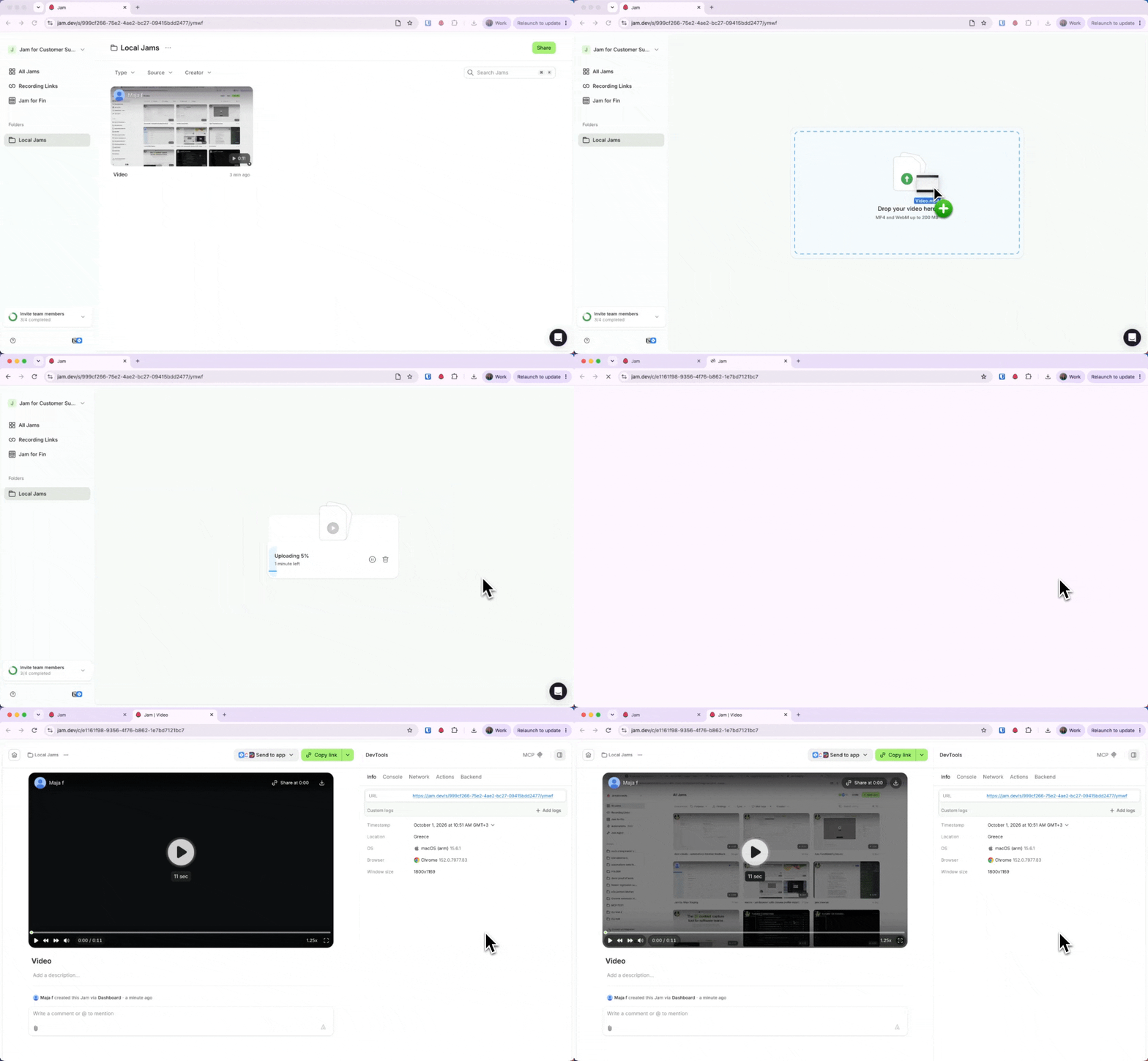
Troubleshooting permissions on Mac
If you are using a Mac and are unable to record your desktop with the extension, follow these steps to fix it. For Jam for Mac, see Grant permissions.1
Open System Settings
2
Open Privacy & Security
3
Select Screen & System Audio Recording
On older macOS versions this is called Screen Recording.
4
Remove Google Chrome
If you don’t see Google Chrome on the list, skip to the next step. If you see Google Chrome on the list, remove it using the minus icon.
5
Add Google Chrome
Add Google Chrome to the list using the plus icon.